


To make a WordPress site accessible, check the parts that most often stop people from using it: the theme, headings, alt text, color contrast, link text, forms, keyboard access and video captions. Each check below names the WordPress setting involved and the WCAG 2.2 success criterion behind it.
This is a practical checklist, not legal advice, and following it does not by itself make a site compliant with any law. For the legal side, read our plain guide, Is My Website ADA Compliant?.
Key Takeaways
- Every check below maps to a numbered success criterion in WCAG 2.2, the W3C Web Content Accessibility Guidelines.
- An accessibility-ready theme is a good start, but content and plugins can still create barriers.
- Alt text, headings, link text and form labels are content decisions you can fix in the WordPress editor for free.
- If the Tab key cannot reach and show every link, button and form field, some visitors cannot use the site.
- Accessibility plugins and overlays are tools, not a fix, and the US Department of Justice advises a manual check as well.
How do you make a WordPress site accessible, step by step?
You make a WordPress site accessible by running the same short set of checks on every page template, then fixing what fails. Each check comes from a numbered success criterion in WCAG 2.2, the Web Content Accessibility Guidelines published by the W3C, shown here with its level.
| Check | Where in WordPress | WCAG 2.2 success criterion (level) |
|---|---|---|
| Skip link | Your theme | 2.4.1 Bypass Blocks (A) |
| Page title | Browser tab | 2.4.2 Page Titled (A) |
| Headings | Each page and post | 1.3.1 Info and Relationships (A), 2.4.6 Headings and Labels (AA) |
| Alt text | Image block, Media Library | 1.1.1 Non-text Content (A) |
| Contrast | Theme colors, buttons, fields | 1.4.3 Contrast (Minimum) (AA), 1.4.11 Non-text Contrast (AA) |
| Zoom | Each template at 200 percent | 1.4.4 Resize Text (AA) |
| Link text | Posts, menus, buttons | 2.4.4 Link Purpose (In Context) (A) |
| Forms | Each form field | 3.3.2 Labels or Instructions (A) |
| Keyboard | Menus, popups, forms | 2.1.1 Keyboard (A), 2.4.7 Focus Visible (AA), 2.4.11 Focus Not Obscured (Minimum) (AA) |
| Captions | Video block Text tracks | 1.2.2 Captions (Prerecorded) (A) |
Is your WordPress theme built for accessibility?
A WordPress theme is accessibility-ready when it has been approved for the accessibility-ready tag in the WordPress.org theme review. The Accessibility-Ready Theme Requirements list what is “required for approval to use the accessibility-ready tag”, including “Skip to Content Link”, “Keyboard navigation support” and “Sufficient color contrast of text and UI controls”.
The tag covers the theme as reviewed, not your finished site, and a common pattern we fix is a tagged theme undone by a page builder layout, a slider plugin or custom colors. The same requirements say a theme “Must not recommend or require inaccessible plugins”, a fair test for every plugin you add. An untagged theme can still pass, so check it against the list before switching.
Do your WordPress headings follow a logical order?
WordPress headings should describe each section and step down in order, from the main heading to H2 and then H3, never picked for their font size. WCAG 2.2 2.4.6 Headings and Labels requires that “Headings and labels describe topic or purpose.”
The W3C Easy Checks page explains why heading order matters: “Screen reader users often use page headings as a way to navigate a web page.” Read only the headings on a page and check that they still make sense as an outline.
Does every image on your WordPress site have useful alt text?
Every image that carries meaning needs alt text that says what the image is for, and decorative images should be marked as decorative. WCAG 2.2 1.1.1 Non-text Content requires that “All non-text content that is presented to the user has a text alternative that serves the equivalent purpose”, with listed exceptions.
The WordPress Image block documentation says “If you add alt text in the block settings, that edit only applies to the image on that specific page or post.” By contrast, “Adding alternative text for an image in the Media Library sets the default alt text when you insert the image elsewhere.” Keep alt text brief: a logo usually needs only the company name.
Is the color contrast on your WordPress site high enough?
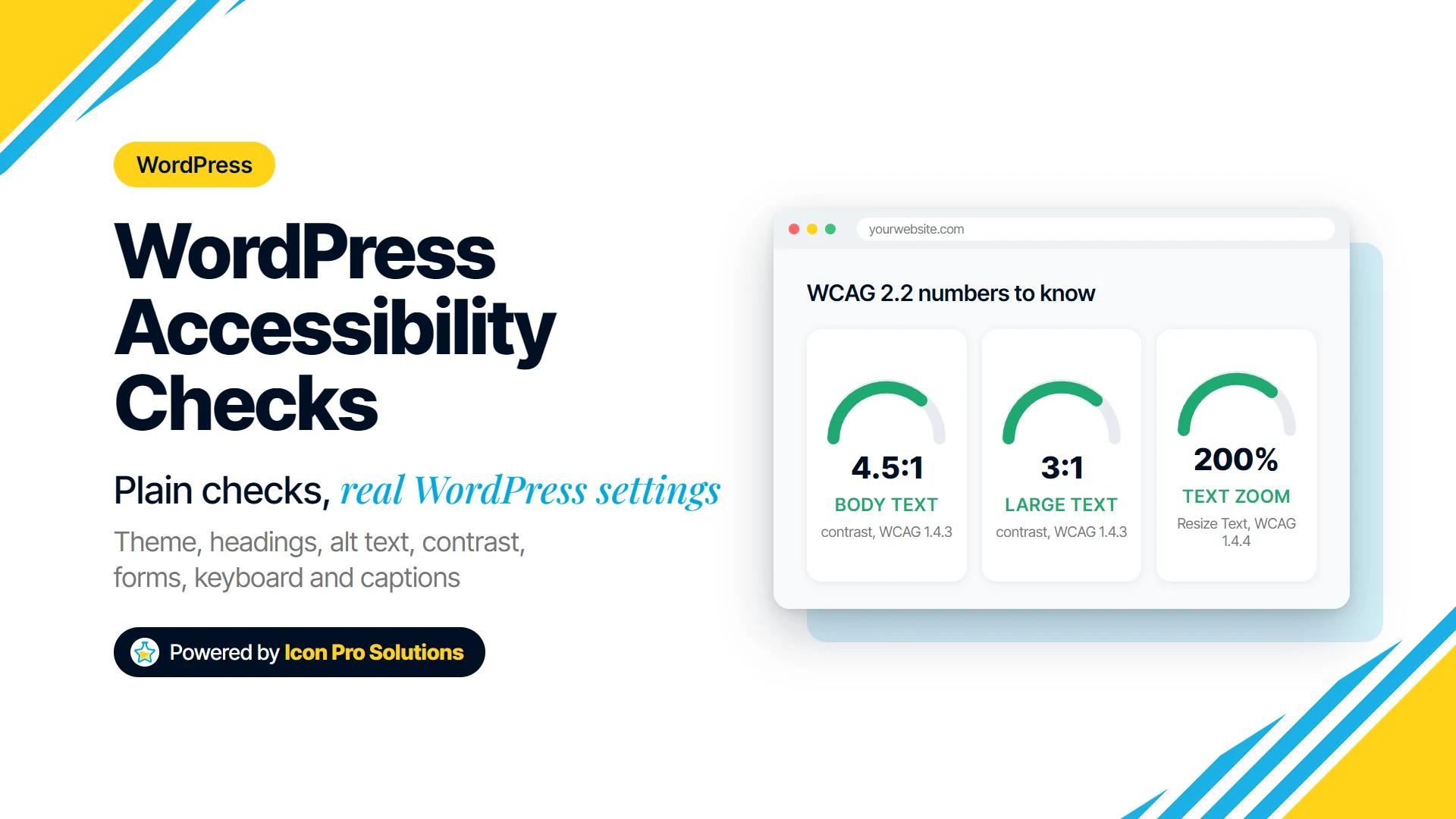
Normal text needs a contrast ratio of at least 4.5:1 against its background, and large text needs at least 3:1. WCAG 2.2 1.4.3 Contrast (Minimum) sets “a contrast ratio of at least 4.5:1” and says “Large-scale text and images of large-scale text have a contrast ratio of at least 3:1”.
Contrast problems usually sit in the theme settings: pale gray body text, white text on a light brand color, faint field borders. Test any pair, including hover and focus colors, in our free color contrast checker, which shows the ratio and suggests the nearest shade that passes.
Text also has to survive zoom, and WCAG 2.2 1.4.4 Resize Text asks that “text can be resized without assistive technology up to 200 percent without loss of content or functionality”. A layout built to reflow, as in our guide to building a responsive WordPress website, usually copes far better than a fixed‑width one.
Does every link on your WordPress site say where it goes?
Every link should make sense from its own words, or from its words plus the sentence around it. WCAG 2.2 2.4.4 Link Purpose (In Context) requires that “The purpose of each link can be determined from the link text alone or from the link text together with its programmatically determined link context”.
In the WordPress editor, link the words our price list, not a bare click here, and avoid a row of identical Learn More buttons. The WordPress.org accessibility-ready theme requirements also rule out links that open a new window or tab without warning, so say so in the link text when one must.
Do your WordPress forms have labels people can see?
Every field in a WordPress form needs a visible label that says what to enter, not just placeholder text inside the box. WCAG 2.2 3.3.2 Labels or Instructions requires that “Labels or instructions are provided when content requires user input.”
To check a form, open each field in your form plugin and confirm the label is filled in and shown. Then submit the form empty: each error message should say which field is wrong and how to fix it.
Can you use your whole WordPress site with only a keyboard?
You should be able to reach and operate every link, menu, button and form field on a WordPress site with the keyboard alone, and always see where you are. WCAG 2.2 2.1.1 Keyboard requires that “All functionality of the content is operable through a keyboard interface”. WCAG 2.2 2.4.7 Focus Visible requires that “Any keyboard operable user interface has a mode of operation where the keyboard focus indicator is visible.”
WCAG 2.2 marks 2.4.11 Focus Not Obscured (Minimum) as new: “When a user interface component receives keyboard focus, the component is not entirely hidden due to author-created content.” On WordPress sites we often see sticky headers, cookie banners and chat widgets covering the focused link.
A five-minute keyboard test:
- Load a page and press Tab. The W3C Easy Checks page says “A skip link is the first interactive element on a page.”
- Keep pressing Tab and look for a visible highlight on every stop.
- Open and close each menu, slider and popup without the mouse.
- Submit a form, noting any stop where focus vanishes or gets trapped.
Do your WordPress videos have captions?
Every prerecorded WordPress video with sound needs captions. WCAG 2.2 1.2.2 Captions (Prerecorded) requires that “Captions are provided for all prerecorded audio content in synchronized media”, unless the media is a clearly labeled alternative to text.
For a video uploaded to WordPress, the Video block documentation says “The Text tracks option will allow you to display timed text tracks (such as subtitles or captions) when the media is playing.” Each track has a Kind setting, and “If omitted, the default kind is Subtitles”, so set it to Captions. For an embedded video, check the captions on its host.
Can an accessibility plugin or overlay make a WordPress site accessible?
An accessibility plugin or overlay cannot be relied on to make a WordPress site accessible by itself. The US Department of Justice web accessibility guidance says “Automated accessibility checkers and overlays that identify or fix problems with your website can be helpful tools, but like other automated tools such as spelling or grammar checkers, they need to be used carefully.” The same page advises adding a manual check.
Checker plugins earn their place when they flag missing alt text or empty links while you edit. In our view, a widget sold as a substitute for fixing alt text, headings, labels and contrast is rarely worth paying for.
Frequently Asked Questions
Does following a WordPress accessibility checklist make my site ADA compliant?
No, a checklist cannot make a site compliant with the ADA or any other law, and this post is not legal advice. For legal questions, read our ADA guide or ask a lawyer.
Can I check WordPress accessibility myself for free?
Yes, most checks in this list need only a browser, a keyboard and the WordPress editor. The W3C Easy Checks page is a good free start, but it warns that “A web page could seem to pass these checks, yet still have significant accessibility barriers.”
How often should a WordPress site be rechecked?
Recheck a WordPress site whenever the theme, page builder, form plugin or a page template changes, because each can undo earlier fixes. New posts need a quick check too, since alt text, headings and link text arrive with every one.
Would you rather have someone else build the WordPress site?
If you would rather have someone else build the WordPress site, our WordPress website design service is the next step. Knowing how to make a WordPress site accessible is one part, and checking every template and plugin is the rest.
We build custom WordPress websites in Elementor so the people who own them can edit them, and every project starts with a written scope. Bring this checklist to the first call, and the scope can say plainly which checks are covered. See how we work, or contact us first.