



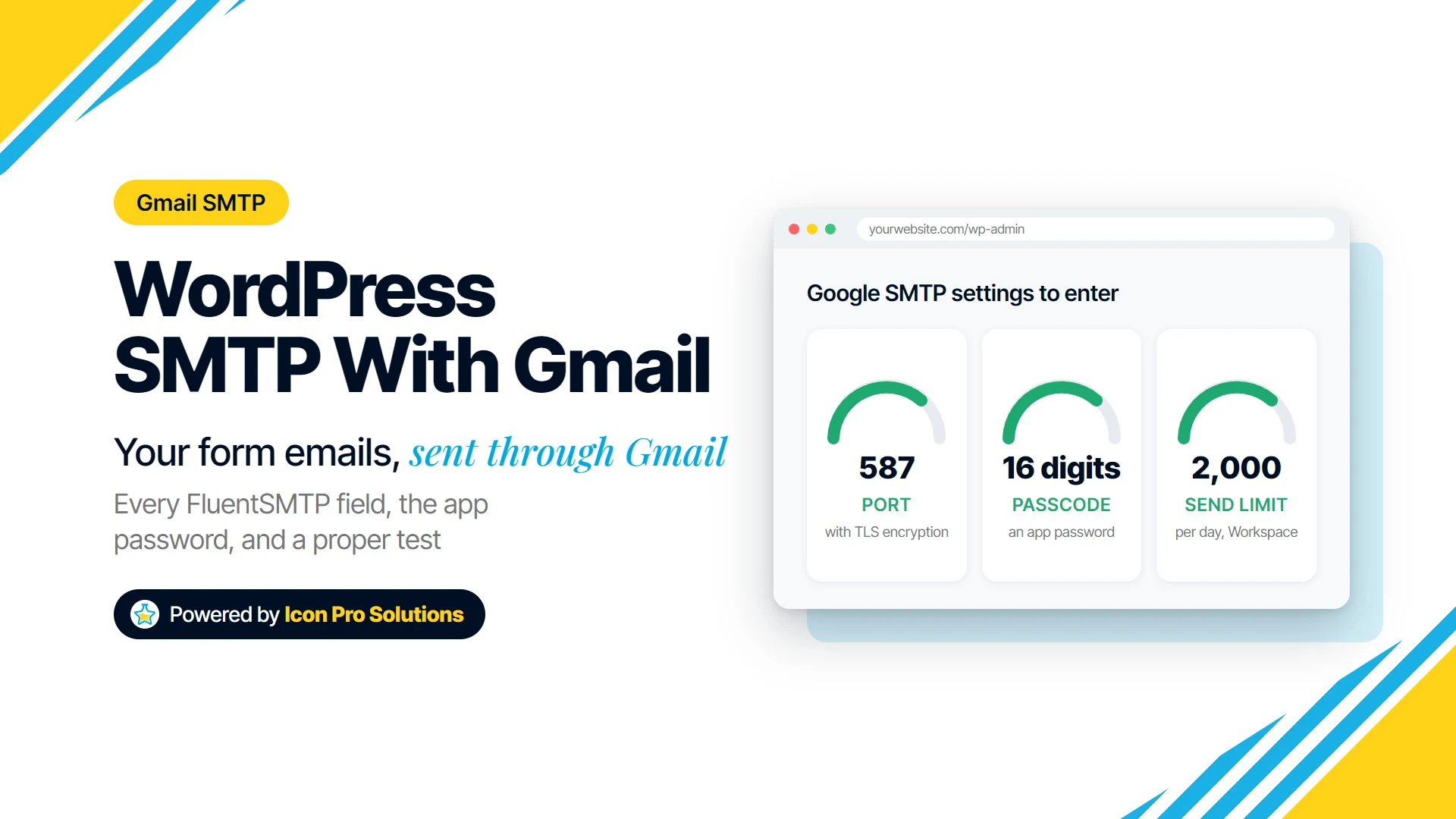
If you want to set up WordPress SMTP with Gmail, most of the work happens on the Google side, not in WordPress. You need the right account, 2-Step Verification, an app password, and a From address that Google will actually send as.
This guide walks through FluentSMTP’s Other SMTP connection field by field, with the value to enter for a free Gmail address or a Google Workspace address on your own domain. It also covers when another connection is the better choice, and how to prove the setup works.
Key Takeaways
- FluentSMTP’s own guide prefers its native Gmail connection, so treat Other SMTP with an app password as the fallback.
- Google only issues app passwords to accounts with 2-Step Verification on, and it revokes them all when the account password changes.
- The settings are
smtp.gmail.com, port587with TLS or465with SSL, authentication on, and the full Google address as the username. - The From Email should be the Google account itself, or an address that account is already set up to send as.
- Test twice, with the plugin’s test email and a real form submission, and check both in the inbox and the email log.
Should you use Other SMTP or FluentSMTP’s Gmail connection?
FluentSMTP’s documentation is plain about what Other SMTP is for: “Use Other SMTP when the service is not in the provider grid”. Gmail has its own tile in that grid, and the same guide says “API connections are more reliable than SMTP.”
Google points the same way. Its help page on app passwords opens with a warning: “App passwords aren’t recommended and are unnecessary in most cases.”
We often see Other SMTP chosen anyway when nobody can manage the Google side of an API connection, or when the owner wants one password they can revoke. It is a reasonable choice for a low-volume site, as long as everyone knows the website depends on that one password.
On Workspace, Google’s own first choice is a third route: “We recommend using the SMTP relay service to send email from devices or apps.” Relay is set up in Google Workspace and “authenticates messages with IP addresses”, and Google notes that “authentication might require a static IP address”.
What do you need on the Google side first?
- Decide which account sends. Google’s guide to sending email from an app says the Gmail SMTP server needs you “to authenticate with your Gmail or Google Workspace account”, so either works.
- Turn on 2-Step Verification for that account. Google states that “App passwords can only be used with accounts that have 2-Step Verification turned on.”
- Create the app password from your Google Account and copy it straight into the plugin. Google calls it “a 16-digit passcode that gives a less secure app or device permission to access your Google Account”.
- On Workspace, if the app password option is missing, talk to your administrator. Google lists “You’re logged into a work, school, or another organization account” among the reasons the option may not appear.
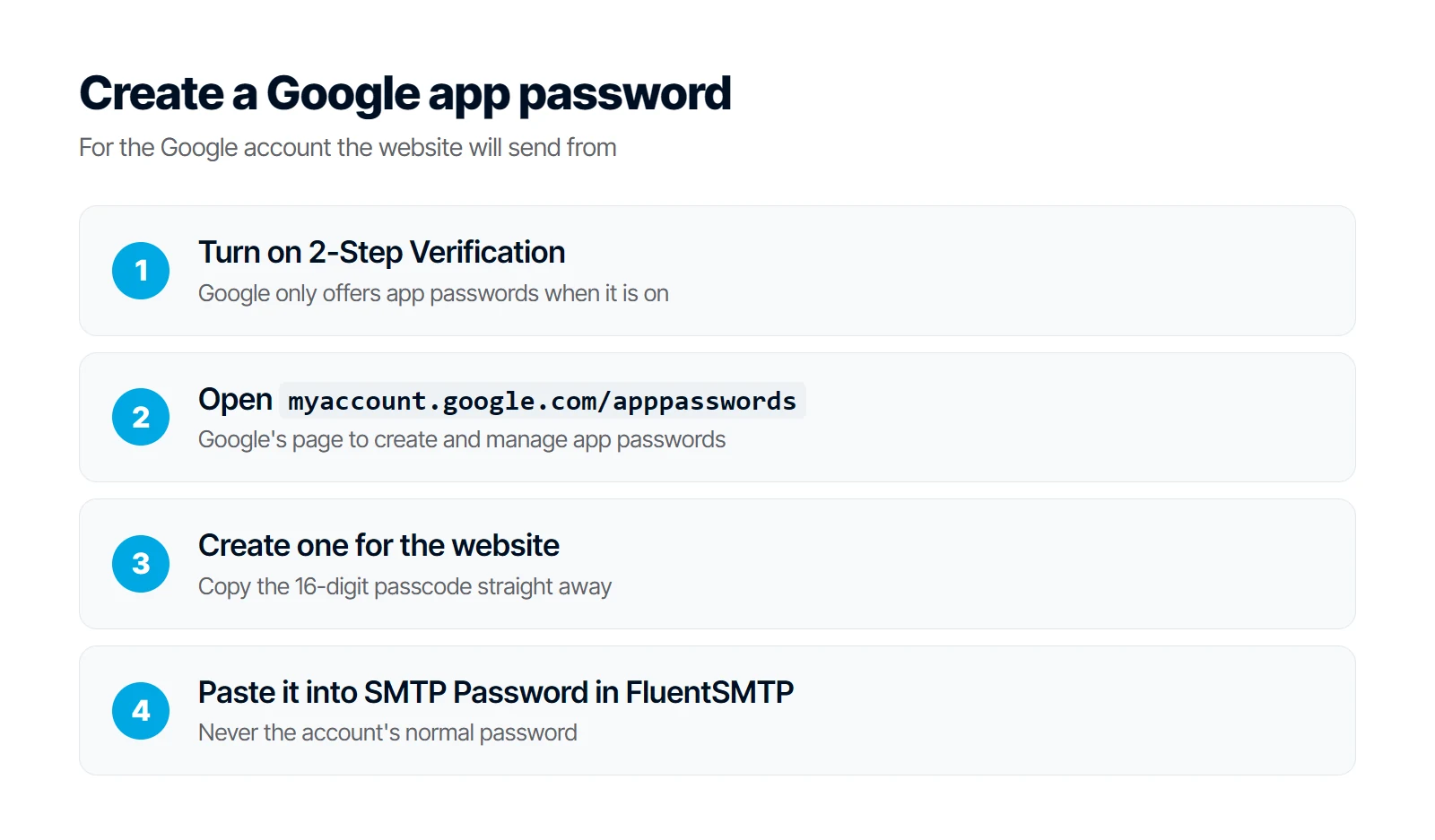
Your normal Google password will not do here. Google’s Workspace guide says its accounts “no longer support less secure apps, third-party apps, or devices that ask you to sign in to your Google Account with your username and password”, and for the Gmail SMTP server it asks for “an app password” instead.
What goes in each FluentSMTP Other SMTP field?
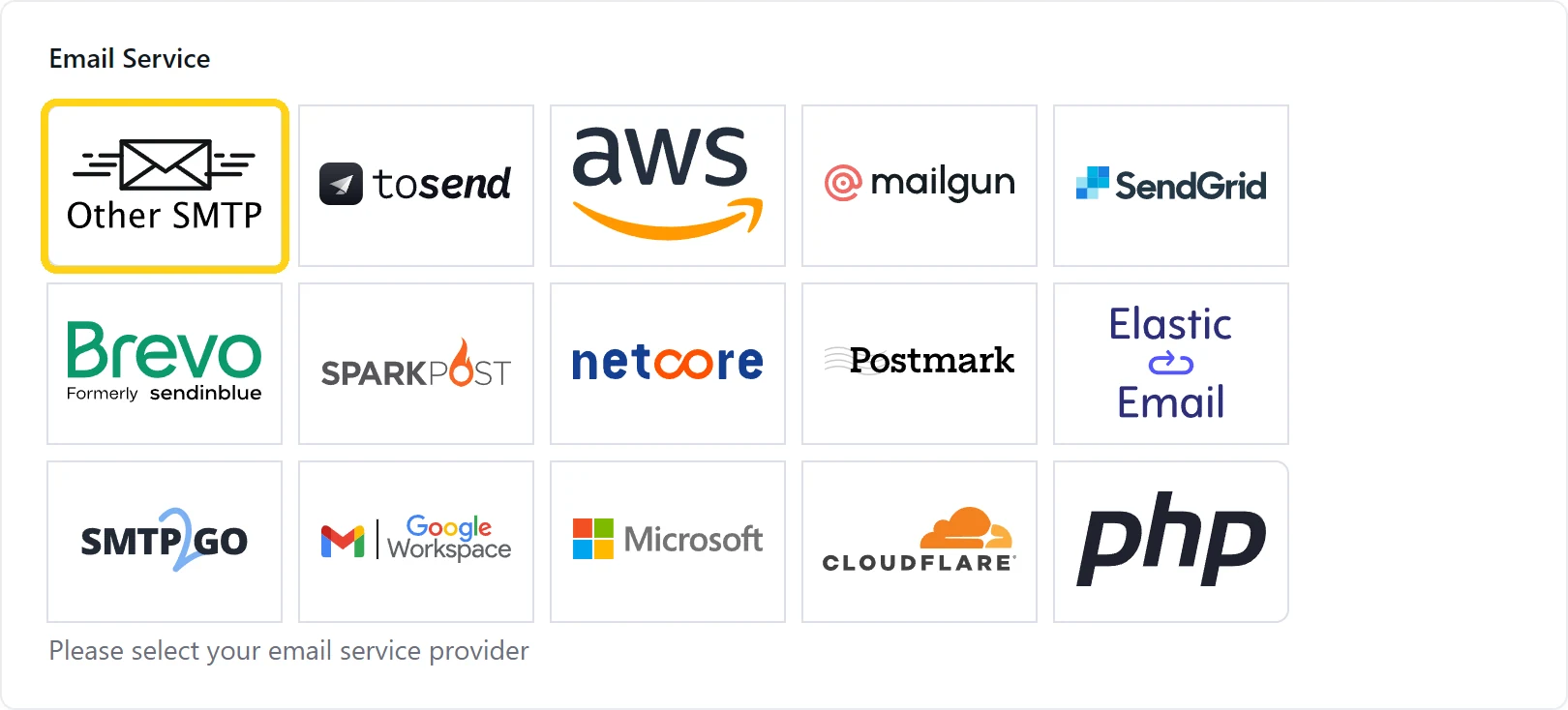
In WordPress, open Settings, then FluentSMTP, add a connection and pick Other SMTP. The form shows Sender Settings first and SMTP Server Settings second, in this order:
| Field | Value for Google |
|---|---|
| From Email | Your Google address, or an alias it can send as |
| From Name | Your business name |
| Force From Email (recommended) | On |
| Set the return-path to match the From Email | On |
| Force Sender Name | On, if every email should carry this name |
| SMTP Host | smtp.gmail.com |
| SMTP Port | 587 or 465 |
| Encryption | TLS with 587, SSL with 465 |
| Use Auto TLS | On |
| Authentication | On |
| SMTP Username | Your full Google address |
| SMTP Password | The 16-digit app password, never the account password |
| Store in Database or Store in wp‑config.php | Either, see the security section |
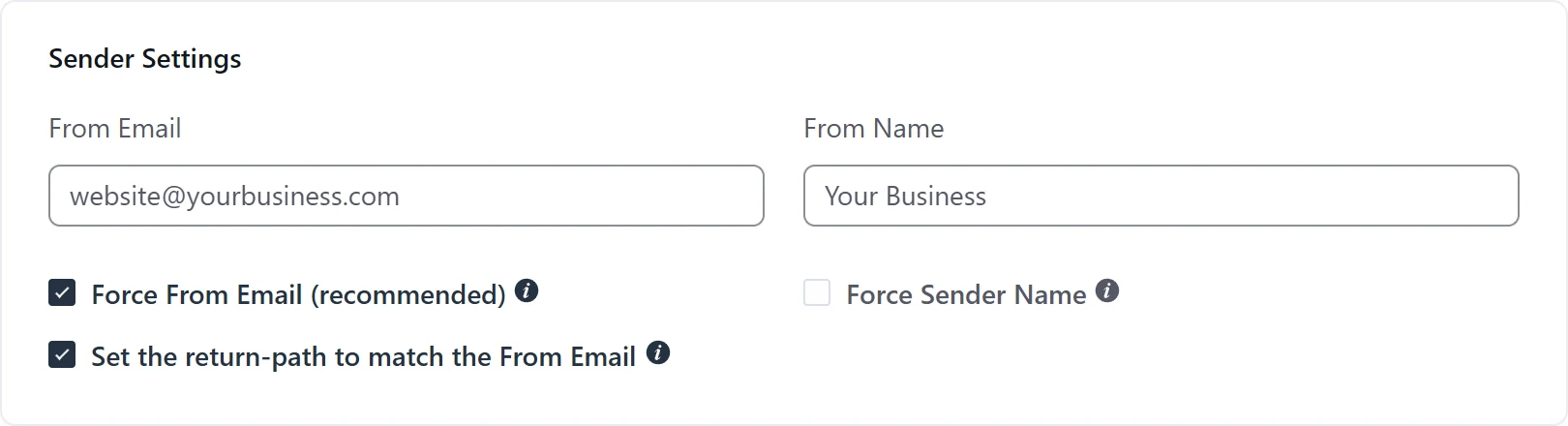
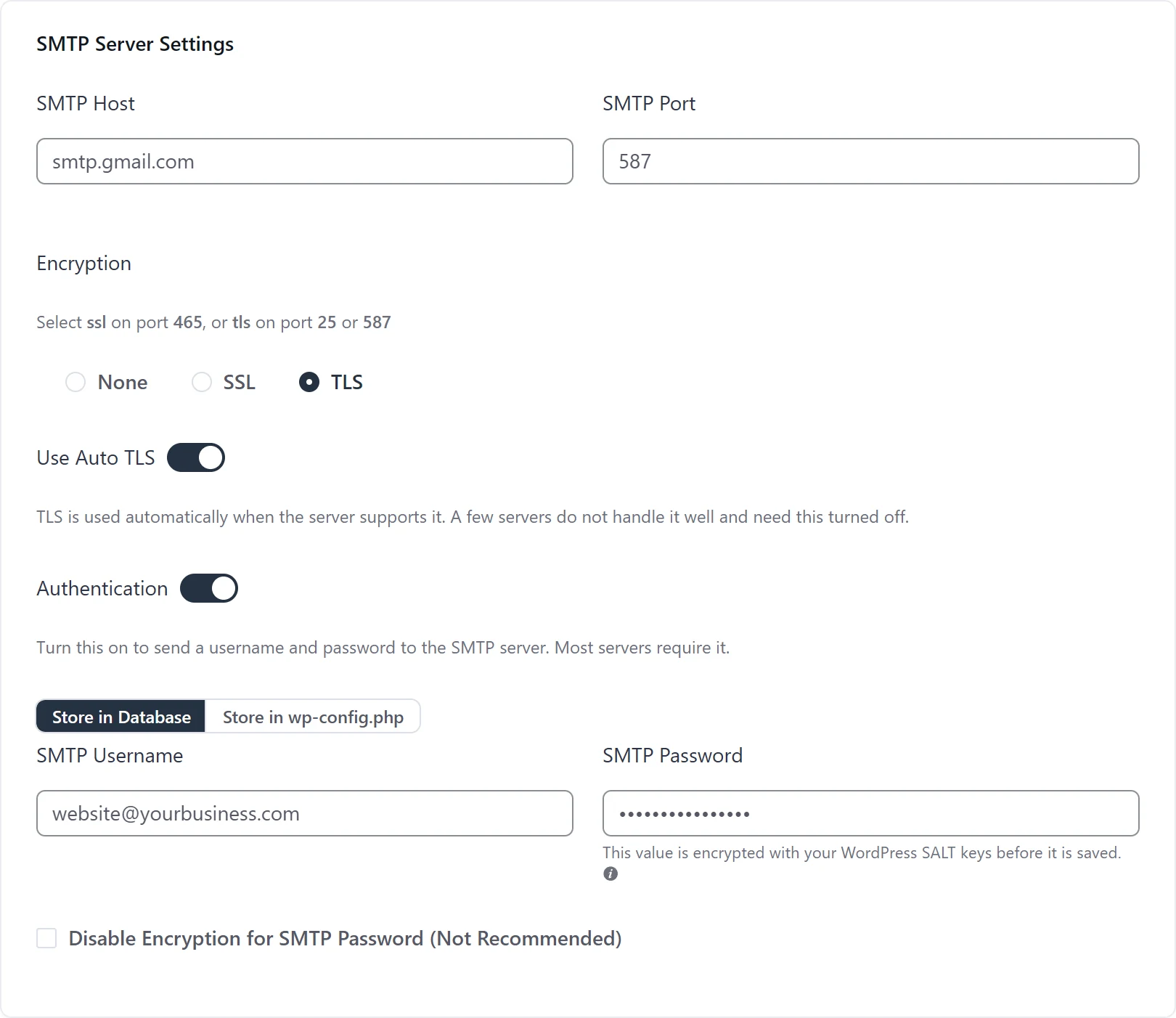
FluentSMTP’s guide says to keep Force From Email on “unless another connection should keep its own From”, and Google’s says to “enter your complete Google Workspace email address” as the username. Then click Save Connection Settings: “FluentSMTP tries the server. If it cannot connect, it says so on the form.”
Which port and encryption should you choose?
Google’s steps for smtp.gmail.com give two pairs: “For SSL, enter 465” and “For TLS, enter 587”. Google lists port 25 as well, but FluentSMTP warns “Many hosts block outbound 25. Use 587 or 465.”
We usually start with 587 and TLS, and move to 465 with SSL if the connection times out.
Why must the From address be your Google account?
Google’s SMTP server signs in as one account, so the From Email should be that account’s own address. To show a different address, set Gmail up to send as it first: “If you own another email address, you can send mail as that address.” You add and confirm it in Gmail’s “Send mail as” settings.
For a Workspace address on your domain, the same page says “If you’re trying to add your work or school account, ask your administrator to configure your domain alias and email alias.”
A common pattern we fix is a From address the account was never set up to send as, with emails arriving under the account’s own address instead. Using the account’s own address avoids that surprise.
How do you test it properly?
- Use Send Test Email in FluentSMTP, sending to an address outside your domain. A success notice only means the message was handed over, so check the inbox and the spam folder.
- Submit a real form the way a visitor would, and place a test order if the site sells online. The plugin test proves the connection, not that each notification is switched on and addressed correctly.
- Find each test in the email log. A failed entry shows the error the mail server returned, which usually names the problem.
- Write down which Google account the site uses and who owns it. Google says “we revoke your app passwords when you change your Google Account password”, so a routine password change stops the site’s mail.
What if it does not work?
| Symptom | Likely cause | Fix |
|---|---|---|
| Authentication failed | Normal password used, or the app password is wrong or revoked | Create a new app password and paste it in |
| Connection timed out | The host blocks that port | Try 587 with TLS, then 465 with SSL |
| Could not connect to SSL | Encryption does not match the port | SSL with 465, TLS with 587 |
| No app password option in Google | 2-Step Verification is off, or the organization blocks it | Turn on 2-Step Verification, or ask your administrator |
| Email shows a different From address | From Email is not the account or a confirmed alias | Use the account’s own address |
| Emails land in spam | SPF does not list Google, or other authentication is missing | See the next section |
| Sending stops partway through the day | The daily sending limit is reached | Move bulk mail to a dedicated sending service |
FluentSMTP’s own list of failures includes “Authentication failed: wrong password, or the host wants an app password.” Read the exact error before you change any setting.
Will these emails land in spam?
Sending through Google helps, but the receiving inbox still checks your domain. For a Workspace address, Google’s SPF setup guide says “Your SPF record should include the domains (or IP addresses) of all servers that send email for your organization (domain).” If Google is your only sender, the record it gives is v=spf1 include:_spf.google.com ~all, and any other service that sends for the domain goes into that same record.
Google’s guide to the Gmail SMTP server also warns: “Spam filters might reject or filter suspicious messages.” Inboxes also check DKIM and DMARC for your domain, so set those up alongside SPF.
How do you keep the app password safe?
Treat the app password as a key to the whole mailbox, because Google says it gives an app “permission to access your Google Account”. That is the best reason to send from a mailbox that holds nothing but website mail.
FluentSMTP’s guide says “Leave Store in Database selected.” The same form offers Store in wp-config.php, which keeps the credentials out of the database and in the site’s configuration file instead.
If the site is retired or the password leaks, remove the app password in your Google Account. Google says “Once you revoke the App Password, the app can’t access your Google Account again.”
Frequently Asked Questions
Can I use my normal Gmail password instead of an app password?
Not reliably. Google notes that with 2-Step Verification on, “some less secure apps or devices may be blocked from accessing your Google Account”, and for Workspace accounts it asks for an app password. The alternative to an app password is FluentSMTP’s native Gmail connection, never the main password.
How many emails can WordPress send through Gmail?
For the Gmail SMTP server, Google’s Workspace guide says “The sending limit is 2,000 messages per day.” That guide is written for Workspace accounts; for a free Gmail address, Google’s Gmail sending limits page says only that Gmail “limits the number of emails you can send or get per day”, without a number. For newsletters or large batches, a dedicated sending service is the better fit.
Do I need to redo this when someone changes the Google password?
Yes. Google revokes app passwords when the account password changes, so the site stops sending until you create a new app password and paste it into SMTP Password. Test with a real form afterwards.
Want someone to set this up and keep it working?
Keeping email working through password changes and plugin updates is the part that slips. Our website maintenance service covers “Core, theme and plugin updates” and “Broken forms, links and layout issues fixed when found”. It starts from “A written plan: what is covered each month, and the price”, and you can contact us to talk through your setup first.