


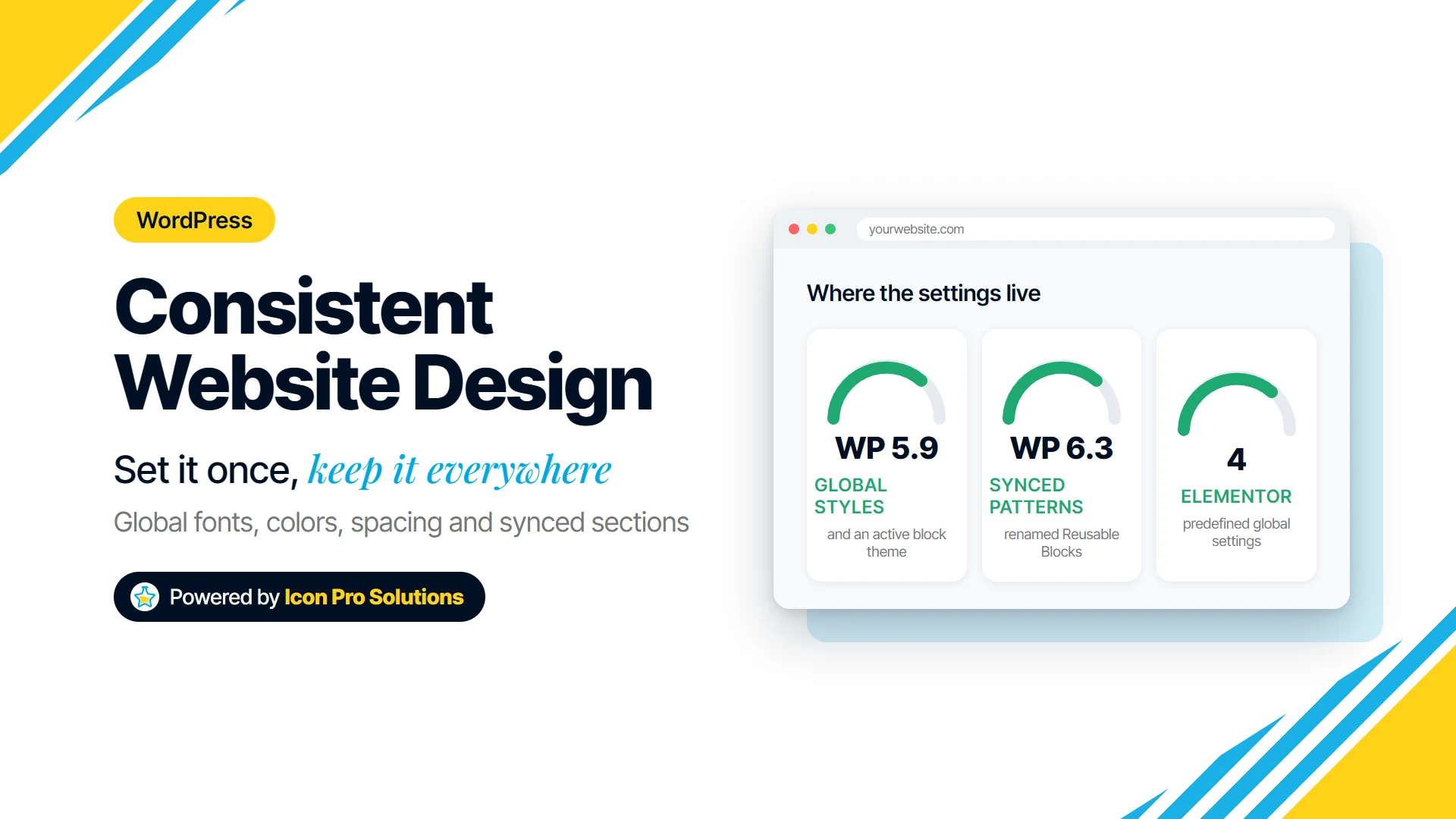
Consistent website design in WordPress comes from deciding fonts, colors, spacing and repeated sections once, in the site’s global settings, and building every page from them. Styling each page by hand looks fine on launch day and drifts a little with every edit after it.
The block editor and Elementor both have the tools for the job. This guide shows where each setting lives, which habits stop drift, and when a cleanup is not worth it.
Key Takeaways
- Consistent website design is shared settings every page reads from, not a style guide people must remember.
- In the block editor, global type, color and spacing live in Appearance > Editor > Styles and in
theme.json. - In Elementor, they live in Site Settings > Design System and Site Settings > Layout.
- Anything that repeats should be synced: a synced pattern in the block editor, a Global Widget in Elementor.
- Most drift comes from one-off values typed into one page, so the cheapest fix is a habit, not a rebuild.
What does consistent website design mean on a WordPress site?
Consistent website design on a WordPress site means every page takes its fonts, colors, spacing and repeated sections from one shared source instead of from values typed into each page. Change the source and every page follows, except elements with values typed in by hand.
The Elementor Help Center says of a design system: “This is especially useful when a site is large or when a team of creators may be simultaneously working on the site.” That is where drift starts.
Why do WordPress sites lose a consistent design over time?
WordPress sites lose a consistent design because the block editor and Elementor both make it easy to override a global style on one element, and each override is invisible from every other page. A heading resized on one page, a button given a typed hex code, a section padded by eye: each is harmless alone, and together they stop the site looking like one design.
A common pattern we fix is a brand color changed in the global settings that only some pages followed, because the rest had the old color typed straight in.
How do you set WordPress global styles in the block editor?
WordPress global styles in the block editor are set in the Styles panel under Appearance > Editor, and in the active theme’s theme.json file. WordPress.org’s Styles overview describes Styles as “a feature that allows you to set the overall aesthetics and layout of your site at a global level, instead of editing individual blocks or pages.” The same page says Styles is included in block themes and “requires WordPress 5.9 or higher.”
Where is the Styles panel in the WordPress Site Editor?
The Styles panel is in Appearance > Editor, behind the half-shaded circle icon at the top right of the screen. Typography sets fonts for text, links, headings and buttons, Colors holds the palette, and Layout sets width and spacing. Styles > Blocks changes one block type, such as every Button block, across the site.
Font size presets in Styles can also be fluid, with a minimum and a maximum size instead of one fixed value. Our guide to CSS clamp() for fluid typography explains fluid sizes, and the free Font Clamp calculator writes the values for a whole type scale.
What does theme.json control?
The theme.json file is where a block theme defines its global settings and default styles, including the presets the Styles panel offers. The WordPress Developer Resources handbook on Global Settings and Styles says the file “is useful for everything from configuring colors to defining default typography settings to applying front-end styles to your theme.” Most site owners only need the Styles panel.
How do you set Elementor global fonts and global colors?
Elementor global fonts and global colors are set in Site Settings > Design System > Global Colors and Global Fonts, opened from the Elementor logo in the editor’s top bar. The Elementor Help Center describes “the four predefined global settings”, plus any named colors and text styles you add. The payoff, in Elementor’s words: “just one change to the global settings will affect all instances across your site.”
An Elementor element only follows a global if that global was chosen for it. Elementor’s help center says Global Colors and Global Fonts “are additional style layers that use CSS variables,” sitting on top of Theme Style. So pick the named global in every color and typography control, never a typed hex code or pixel size.
Elementor’s Theme Style, also in Site Settings, is the baseline that “comes into play only as a fallback” in Elementor’s own words. Fill it in completely, or unset elements inherit their look from the theme, the browser or a plugin.
How should spacing be set once instead of per page?
Spacing should come from the site’s global defaults and a short list of agreed steps, never from padding typed into each section by eye. In our experience, spacing is often the first setting to drift.
In the block editor, the Layout section of Styles sets content width, padding and block spacing for the whole site. WordPress.org’s Styles overview says the padding preset slider lets you “create consistent spacing across the elements within the site.”
In Elementor, click the Elementor logo in the editor’s top bar, choose Site Settings, then Layout, to set Content width, Container padding and Gaps. Elementor’s global layout settings guide says “The Editor will use these new default settings when you create pages,” so check existing pages after changing a default. Making that spacing work on a phone is a separate job: see how to build a responsive WordPress website.
Which reusable templates keep a WordPress layout consistent?
Synced, reusable parts keep a WordPress layout consistent, because editing the one source updates every page that uses it. An unsynced copy is only a starting point, edited on its own once placed.
How do synced patterns and template parts work in the block editor?
A synced pattern is the block editor’s reusable section that stays in step everywhere. WordPress.org’s Block Pattern guide says “Editing the synced pattern will update it anywhere it is used.” To make one, select the blocks, open the three-dot menu, choose Create pattern/reusable block, name it and turn on the Sync option.
WordPress 6.3 renamed Reusable Blocks to Patterns, so older tutorials on reusable blocks describe synced patterns. Headers and footers belong in template parts, which the WordPress developer handbook describes as “custom template parts that can be reused across your theme.”
How do Global Widgets and saved templates work in Elementor?
A Global Widget is Elementor’s synced option: right-click the widget’s handle, choose Save as a global, and it appears in the editor panel under Globals. Elementor’s Global Widget guide says “Editing it in one place will instantly update the rest.” Global widgets are listed in WP Admin under Templates > Saved Templates.
Treat an ordinary Elementor saved template as a starting layout: before relying on one to stay in step, edit it and check a page that uses it.
Where do the global settings live in each builder?
The global settings live in Appearance > Editor > Styles for the block editor and in Site Settings for Elementor.
| What should stay consistent | Block editor | Elementor |
|---|---|---|
| Fonts and type sizes | Appearance > Editor > Styles > Typography | Site Settings > Design System > Global Fonts |
| Brand colors | Appearance > Editor > Styles > Colors | Site Settings > Design System > Global Colors |
| Default width and spacing | Styles > Layout | Site Settings > Layout |
| One element type everywhere | Styles > Blocks | Site Settings > Theme Style |
| A repeated section | Synced pattern | Global Widget |
What habits stop a WordPress site drifting?
The habits that stop a WordPress site drifting are small and repeated: pick a global every time, sync what repeats, and review the whole site on a schedule.
- Choose a global color or global font every time, and add a new named global rather than a one‑off value.
- Name globals by role, such as Primary or Accent, not by appearance, such as Dark Blue.
- Build the header and footer once for the whole site, never as a copy on each page.
- Sync anything that repeats: calls to action, contact bands, testimonial blocks.
- Every few months, open several pages side by side and compare headings, buttons and spacing.
- Show every new editor which settings are global before they edit their first page.
If nobody on the team has time for those edits, a website maintenance plan covers content edits and layout fixes.
When is a design consistency cleanup not worth doing?
A design consistency cleanup is not worth doing on a small site that one person edits and that is due for a redesign soon. Set the globals up properly in the new build instead of retrofitting the old one.
On a site that will stay, you can do the work yourself: Styles is part of WordPress, and Elementor’s globals are in its own Site Settings. The cost is time: set the globals, then replace one-off values page by page, busiest pages first.
Frequently Asked Questions
Do I need a block theme to use WordPress Global Styles?
Yes, the Styles panel in Appearance > Editor needs an active block theme and WordPress 5.9 or higher. A site on a classic theme does not get the Styles panel, so its global settings have to come from somewhere else, such as Elementor’s Site Settings.
Is Elementor Theme Style the same as Global Colors and Global Fonts?
No, Theme Style sets fallback styles for HTML elements, while Global Colors and Global Fonts are named settings that sit on top and take precedence. Elementor’s help center recommends paying attention to both.
Can I change one copy of a synced section without changing the rest?
Yes, detach that one copy from the synced source. In the block editor, a synced pattern can be detached to a regular block and edited on its own. In Elementor, Unlink from global does the same for one instance of a Global Widget.
Want consistent website design built into your site?
If you would rather have consistent website design built in from the start, our WordPress website design service builds custom WordPress websites in Elementor, so the people who own them can edit them. Every project starts with a written scope and includes a handover walkthrough on how to make changes yourself.
Not sure yet whether you need a rebuild or a tidy-up? Contact us and tell us what you are seeing.