


A website launch checklist is the list of everything to confirm before a new or rebuilt site goes public. It covers whether search engines are allowed in, how each page looks in search and when shared, and whether forms, redirects, analytics and backups work. Most launch problems are easy to fix and easy to miss on the day.
This guide is for small business owners and marketers launching or relaunching a site on any platform, with a free tool wherever one genuinely helps.
Key Takeaways
- Remove every staging block: the WordPress “Discourage search engines from indexing this site” box, a Shopify store left on Private, or a leftover noindex tag.
- Titles are cut by width, not character count, so preview each key page at the width Google shows.
- On a relaunch, send every changed URL to its new address with a permanent server‑side redirect.
- Submit every form yourself and restore a backup once before you announce anything.
- Check normal text against the WCAG minimum of 4.5:1 while the colors can still change.
What Should Be on a Website Launch Checklist?
A website launch checklist should cover six areas: indexing, search and share appearance, the favicon, structured data, readability, and whether everything works. Run it on staging first, then again on the live domain, because indexing and redirects can only be confirmed there.
Can Search Engines Find and Index the Site?
Only once you remove the blocks that kept the staging site private.
- Turn off the staging block. In WordPress, untick “Discourage search engines from indexing this site” under Settings > Reading. On Shopify, change the store from Private to Public on the Online Store page of your admin.
- Remove noindex tags a developer or plugin added to staging pages.
- Check robots.txt no longer disallows the whole site. Google’s robots.txt introduction is clear that “it is not a mechanism for keeping a web page out of Google.”
- Submit your sitemap in Google Search Console. WordPress core generates one at
/wp-sitemap.xml, and Shopify createssitemap.xmlautomatically. Google defines it as “a file where you provide information about the pages, videos, and other files on your site, and the relationships between them.” - Redirect every changed URL on a relaunch: “If you need to change the URL of a page as it is shown in search engine results, we recommend that you use a permanent server-side redirect whenever possible.” Map each old URL to its closest new page and test a handful after launch.
- Force https, so every http address redirects to the secure version.
How Will Each Page Look in Google and When Shared?
Each page shows a title and description in Google, and a title, description and image when shared, so check all three before launch. Google’s title link guidance says: “Make sure every page on your site has a title specified in the <title> element.” It also notes that “the title link is truncated in Google Search results as needed, typically to fit the device width.”
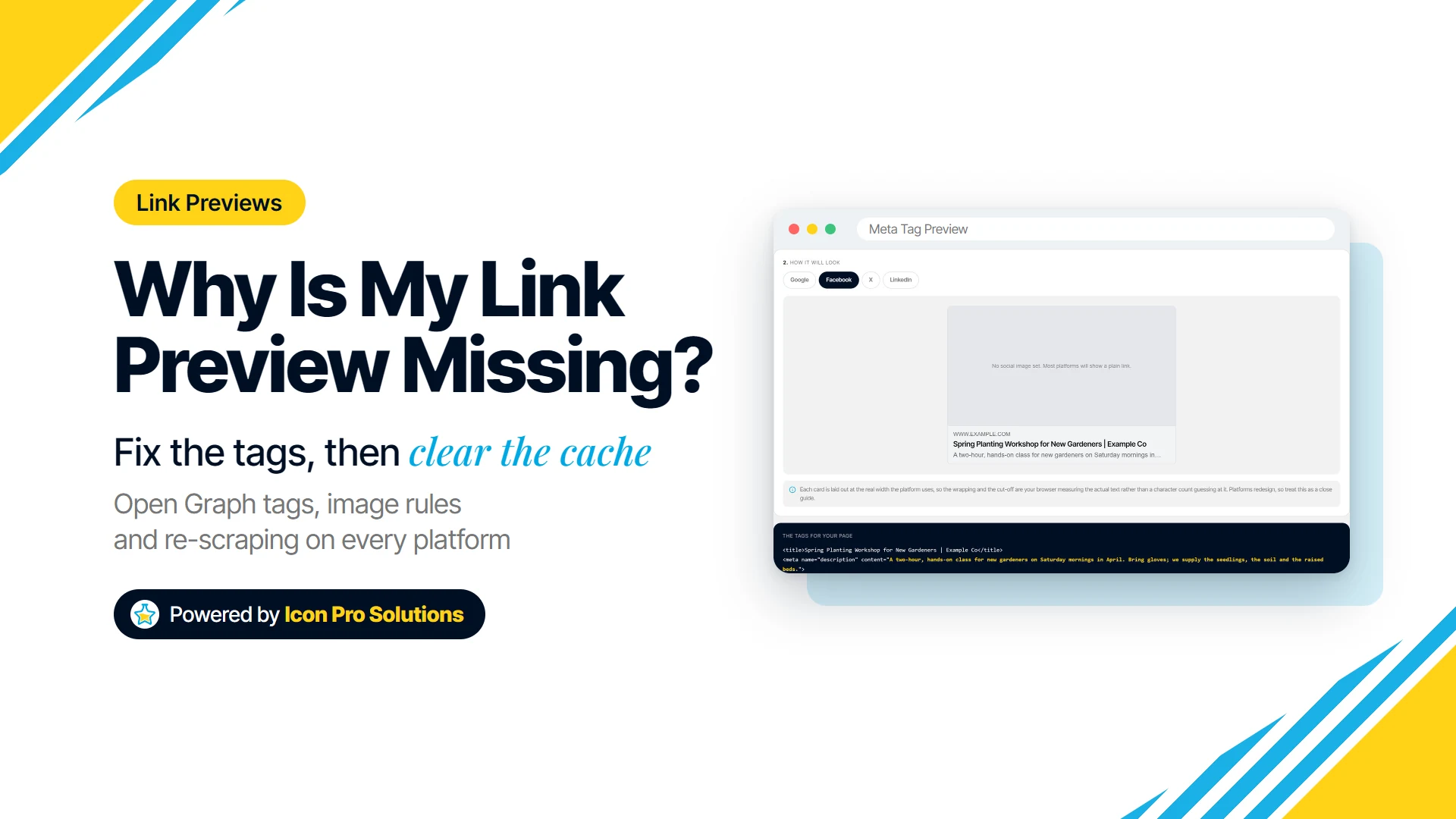
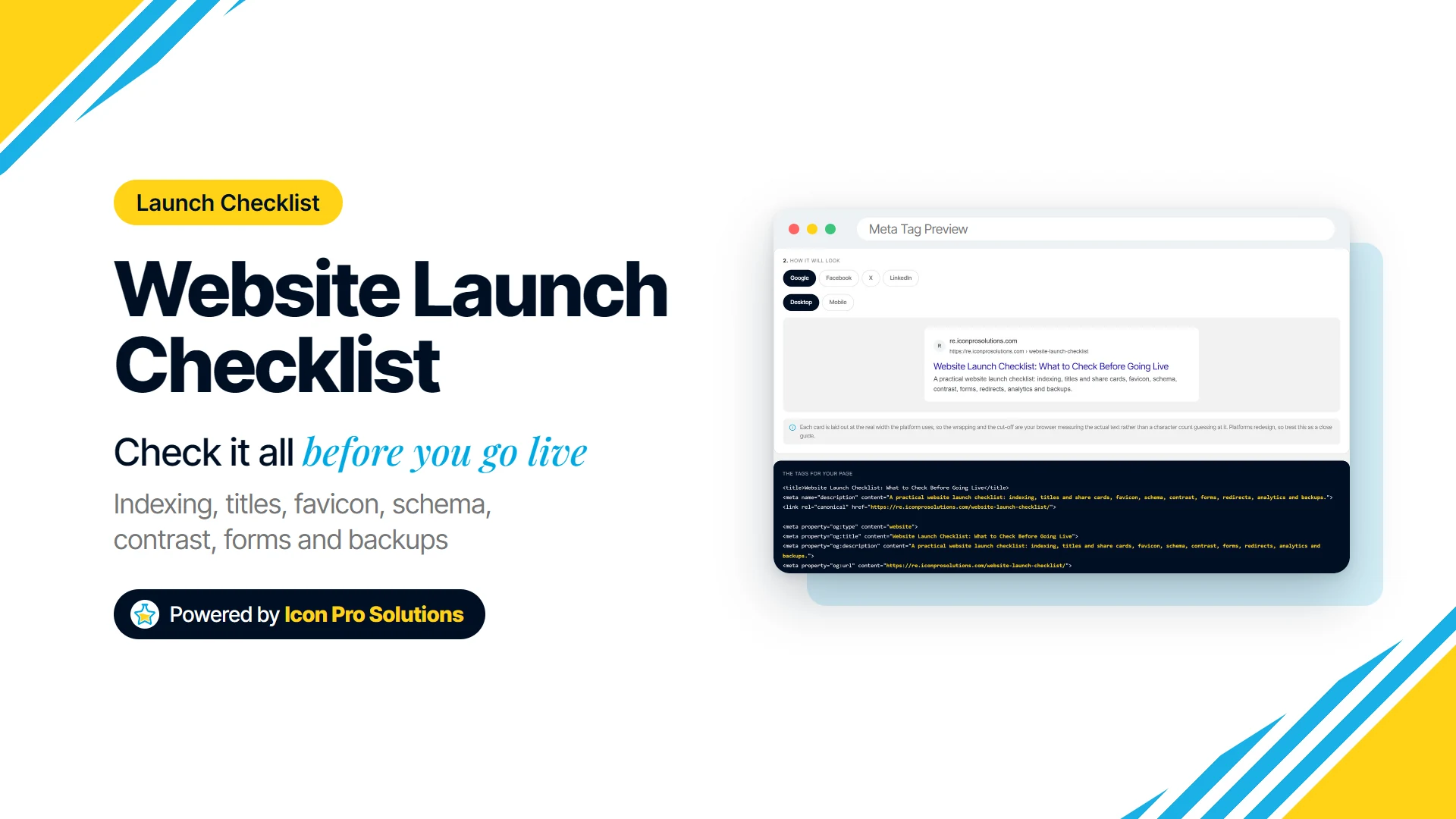
Our free Meta Tag Preview tool shows a title and description as a Google result on desktop and mobile, and as share cards on Facebook, X and LinkedIn. Its meters measure the pixel width of your text instead of counting characters, and for an existing page you can paste its head from view-source to read the tags back. It then gives you the title, description, canonical, Open Graph and Twitter Card tags to copy.
It checks one page at a time and never fetches your URL. Platforms redesign, so treat the preview as a close guide.
Write a description even though Google may not show it: Google may use it “when it describes the page better than other parts of the content.” For the share image, the tool’s tags assume 1200 by 630 pixels, and the Image Resizer has an Exact size mode that crops a photo to those dimensions.
Is the Favicon Ready for Browser Tabs and Search Results?
It is ready when the icon files are on the server, linked from the home page’s head, and large enough for Google. Google’s favicon guidelines say “we recommend using a favicon that’s larger than 48x48px so that it looks good on various surfaces,” and that “Googlebot-Image must be able to crawl the favicon file and Googlebot must be able to crawl the home page.”
The free Favicon Generator turns one image into 16 PNG sizes, a favicon.ico holding 16, 32 and 48 pixel icons, a site.webmanifest, a browserconfig.xml and the HTML for your head. Set the folder the files will live in before generating, because that path is written into the snippet and manifest. It warns you if your image is under 512 by 512 pixels.
One honest detail: the snippet’s rel="icon" lines point to the 16 and 32 pixel PNGs, and its larger links use apple-touch-icon, which Google lists among the rel values it supports. If your platform has its own setting, such as Site Icon under Settings > General in WordPress, use that instead.
Does the Site Tell Search Engines What the Business Is?
It does when key pages carry structured data, a JSON-LD block describing the business, a service or an article. In Google’s words: “You can help us by providing explicit clues about the meaning of a page to Google by including structured data on the page.”
The Schema Markup Generator builds JSON-LD for six types: Local Business, Organization, Service, FAQ, Article and Breadcrumbs. Every field is marked required or recommended, and a checklist names any required property still empty, because valid JSON can still do nothing. The block comes wrapped in its script tag, ready to paste.
Then check what it cannot: whether your SEO plugin already outputs schema for that page, and whether Google can read the result in its Rich Results Test.
Can Everyone Read the Text?
Only if the text stands out enough from its background, which WCAG measures as a contrast ratio. WCAG 2.2 Success Criterion 1.4.3 requires that “The visual presentation of text and images of text has a contrast ratio of at least 4.5:1,” with lower bars for exceptions such as large‑scale text.
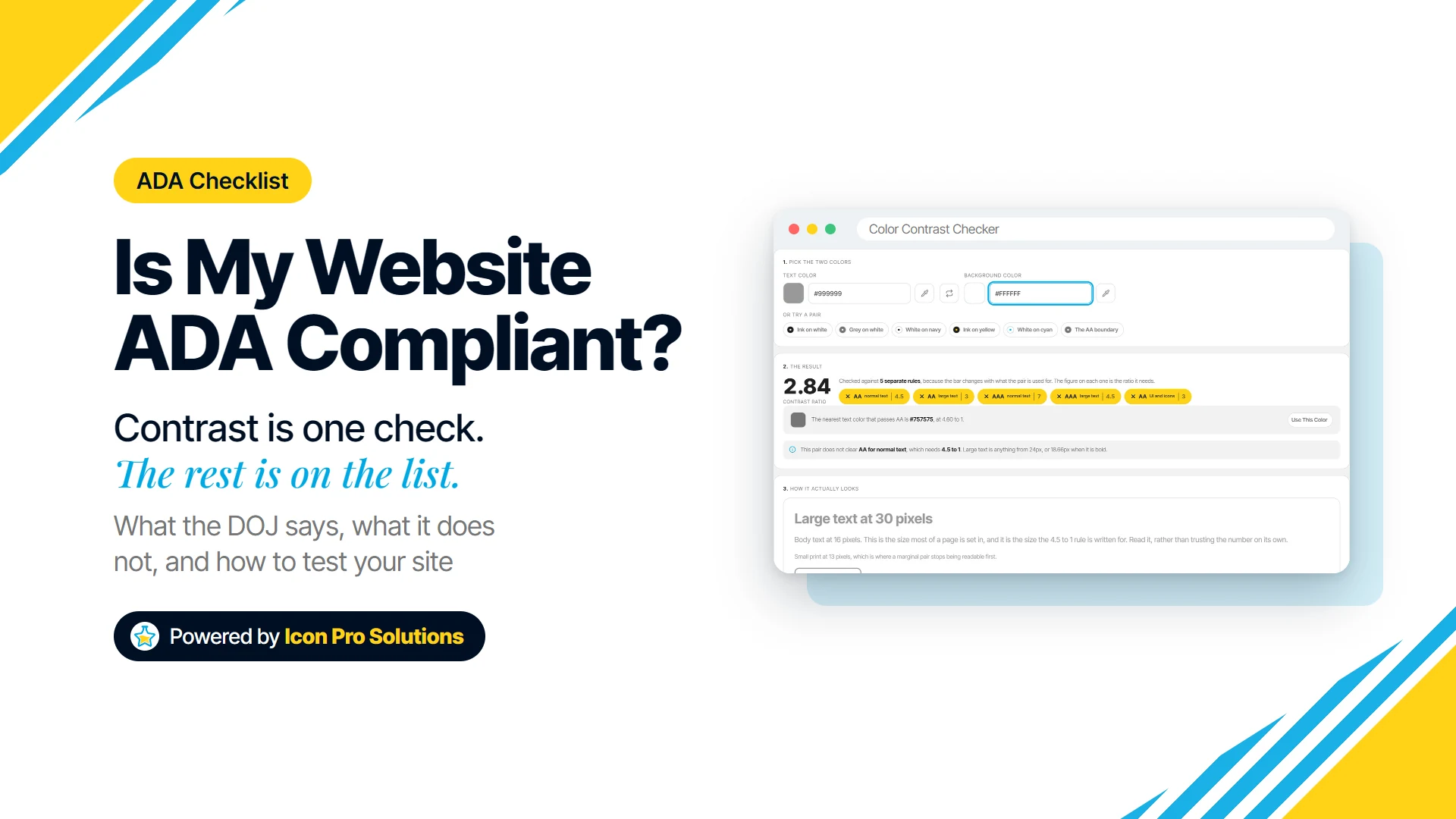
The Color Contrast Checker gives the ratio for a text and background pair, with pass or fail badges for five levels, including AA for normal text and 3 to 1 for interface elements. If a pair fails, it offers the nearest text color that passes. It blends a transparent color over its background before measuring, which is what a reader actually sees.
It checks one pair at a time, so list the pairs your design uses: body text, links, buttons and text over images. Also confirm images have alt text and menus work with a keyboard.
Does Everything Actually Work?
Test it like a customer, on the live domain:
- Forms: submit every form, confirm the email arrives, and check spam.
- Checkout: on a store, place a test order and refund it.
- Links: click every menu and footer link, and make sure a missing page shows a helpful 404 page.
- Phones: open key pages on a real phone, on mobile data as well as wifi.
- Speed: test the home page and your heaviest page. If either drags, here are the usual causes of a slow website.
What Needs to Be in Place Before You Announce the Site?
Analytics, Search Console and a working backup, because none of them can record launch day after the fact.
- Analytics recording visits on the live domain: watch your own visit arrive in the real‑time report.
- Google Search Console verified for the live domain, with the sitemap submitted.
- A full backup of files and database, restored once somewhere safe to prove it works.
- Accounts cleaned up: remove temporary logins and weak passwords.
- Updates applied to the theme, plugins or apps before launch.
What Should You Check in the First Week?
Check that Google is indexing your key pages and visitors are not hitting errors. Google’s noindex documentation suggests you “use the URL Inspection tool to see the HTML that Googlebot received while crawling the page,” which confirms a staging block is gone.
Submit a form again after a few days. Still building? Our guide on how to build a WordPress website covers the steps before this one.
Would you rather hand the launch over? Our WordPress website design service sets the site up on your domain and hosting and launches it, with page titles and meta descriptions set up during the build. To talk it through first, book a free consultation.
FAQs
Should You Launch a Website on a Friday?
It is safer to launch early in the week, while the people who built and host the site are around. A Friday launch can leave a broken form running all weekend.
How Long Does a New Website Take to Appear in Google?
There is no fixed timeline. Submit the sitemap, then use URL Inspection in Search Console on your key pages to check whether they are indexed and to request indexing.
Do You Need a Staging Site Before Launching?
For a relaunch, yes: a staging copy lets you finish and test the new site without touching the live one. For a brand-new site with no visitors yet, building on the live domain behind WordPress’s search engine setting or Shopify’s private mode can work, as long as you switch it off.