


You paste a link into a post or a chat and get a bare URL, the wrong photo or last month’s headline. The page itself is usually fine: what is broken is a few tags that tell each platform what to show, or an old copy the platform saved.
This guide covers the tags that build a link preview, why the image goes missing, why a fix does not show up straight away, and how to check a preview before anyone else sees it.
Key Takeaways
- Link previews are built from Open Graph tags in the head of your page, such as
og:title,og:imageandog:url. Without them, a platform has to guess. - The image has the strictest rules, and they differ: Facebook recommends at least 1200 x 630 pixels, LinkedIn asks for at least 1200 x 627, and WhatsApp wants the file under 600KB.
- Platforms save a copy of your preview. After a fix, re-scrape the page in Meta’s Sharing Debugger or LinkedIn’s Post Inspector, and give a changed image a new file name.
- Google sets no length limit on a title or meta description but cuts both to fit the screen, so it is width that matters, not a character count.
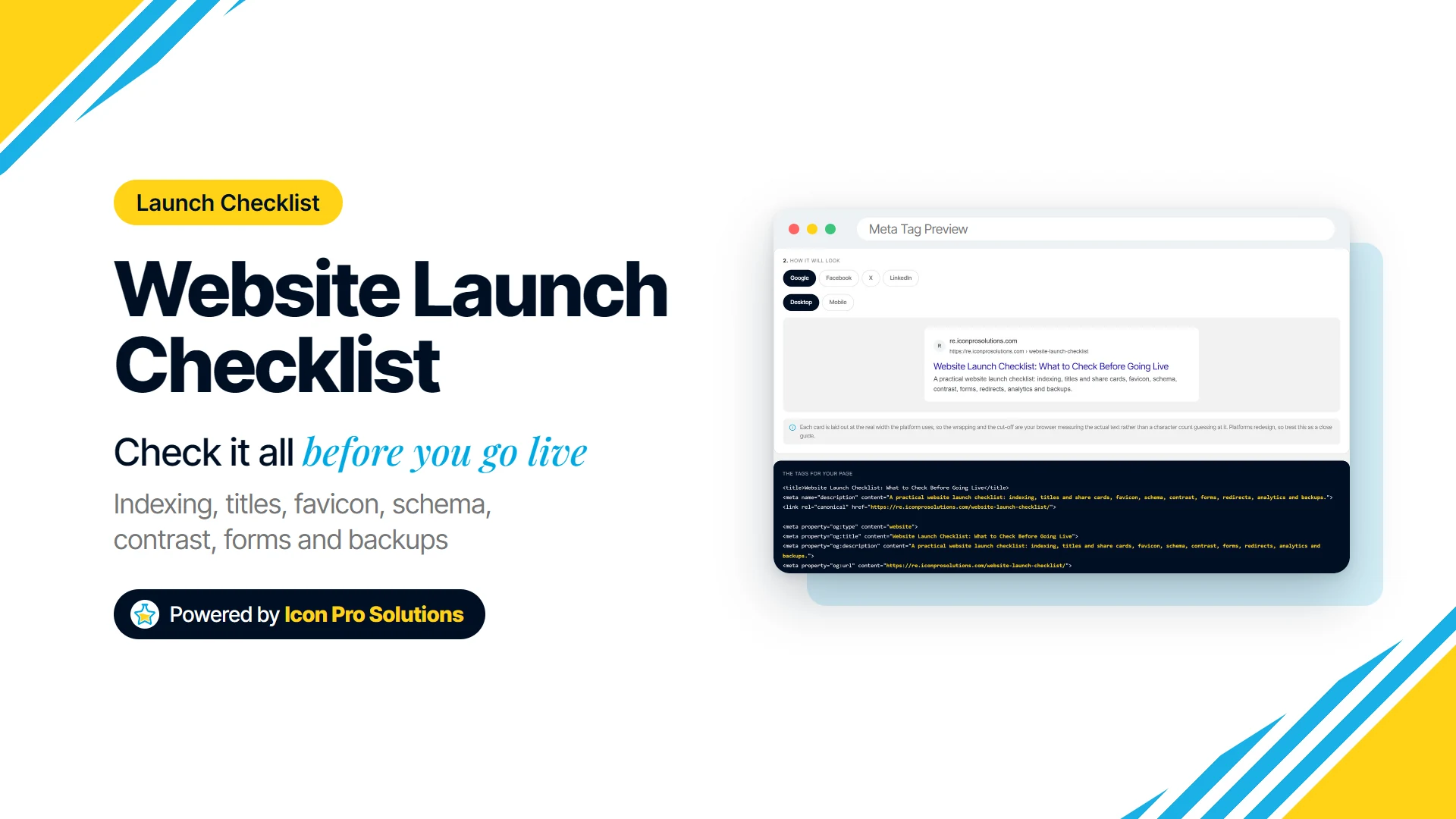
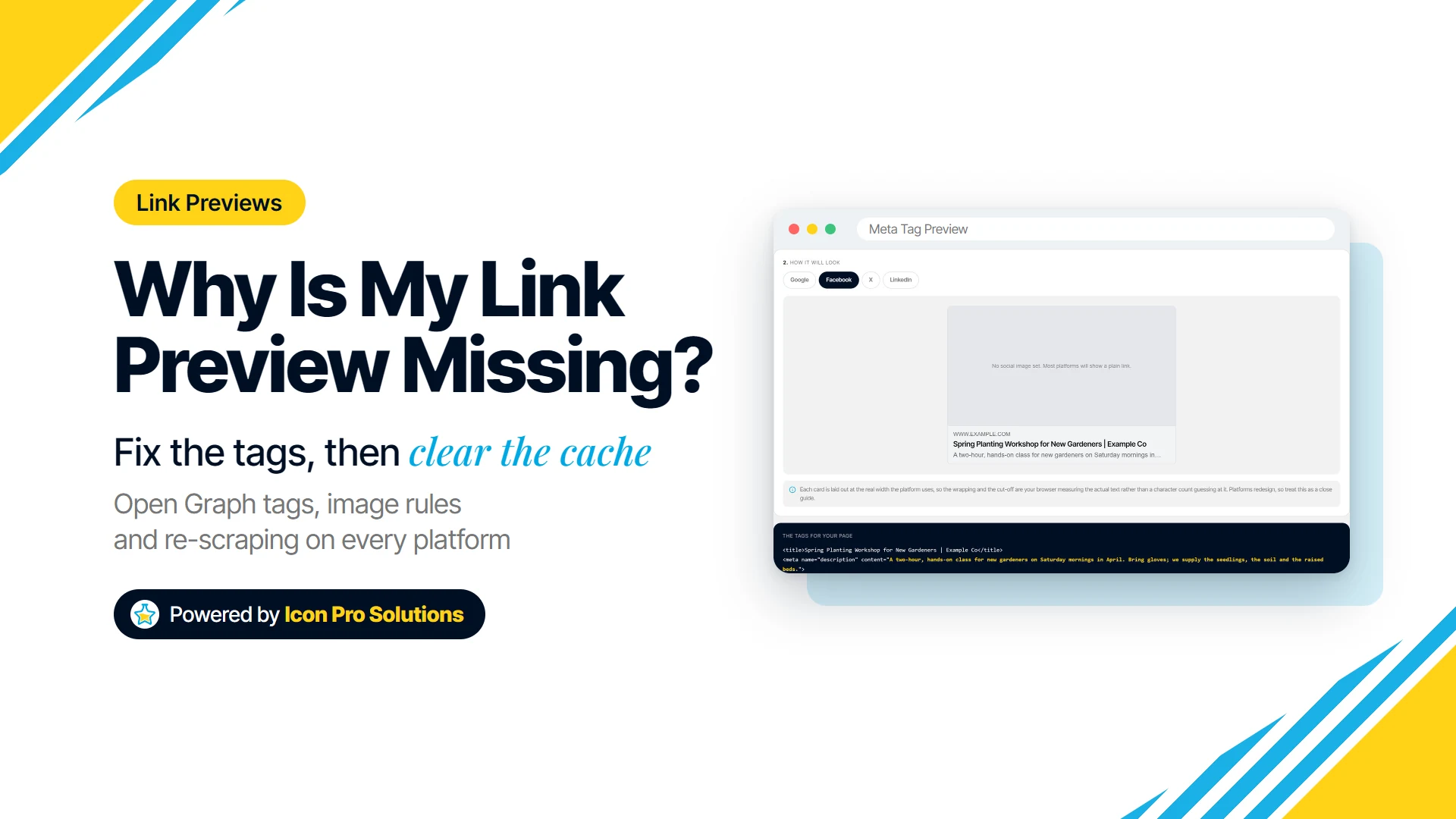
- Preview the tags before you share: our free Meta Tag Preview draws the Google, Facebook, X and LinkedIn versions.
Why Is My Link Preview Not Showing?
Your link preview is usually missing because the page has no Open Graph tags, the tags point at an image the platform will not use, or the platform is still showing an old saved copy. Each platform reads the page and builds the card from the tags in its head.
When the tags are missing, Meta’s documentation says the “Facebook Crawler uses internal heuristics to make a best guess about the title, description, and preview image for your content.” That guess is how a share ends up with an image you never chose, or none at all.
The common causes, in the order worth checking:
- No Open Graph tags at all, so every platform guesses.
- An image the platform rejects: too small, too heavy, the wrong shape, or a relative path.
- A saved copy from the first time the link was shared.
- Two sets of tags, say from the theme and an SEO plugin, so it is unclear which one is read.
What Tags Control a Link Preview?
The Open Graph protocol defines these tags, and Facebook, LinkedIn and WhatsApp all document them. Its specification says “The four required properties for every page are” og:title, og:type, og:image and og:url, and it describes og:image as “An image URL which should represent your object within the graph.”
og:description is optional, described as “A one to two sentence description of your object.”
A complete Open Graph set for one page looks like this, with example.com values:
<meta property="og:type" content="website">
<meta property="og:title" content="Spring Planting Workshop">
<meta property="og:description" content="A two-hour, hands-on class for new gardeners. Saturday mornings in April.">
<meta property="og:url" content="https://www.example.com/workshops/spring-planting/">
<meta property="og:site_name" content="Example Co">
<meta property="og:image" content="https://www.example.com/images/spring-planting-1200x630.jpg">
<meta property="og:image:width" content="1200">
<meta property="og:image:height" content="630">
<meta property="og:image:alt" content="Hands planting seedlings in a raised garden bed">
Two details are easy to miss. The specification says “If the page specifies an og:image it should specify og:image:alt”, and Meta’s guidance for og:title is “The title of your article without any branding such as your site name.”
Why Is the Link Preview Image Not Showing?
The image usually fails because it breaks one platform’s size, shape or file-size rule, or its address is not a full URL. The rules differ:
| Platform | What its documentation asks for |
|---|---|
| At least 1200 x 630 pixels for the best display, at least 600 x 315 for the larger link post, a 200 x 200 minimum, a file no larger than 8 MB, and as close to 1.91:1 as possible | |
| At least 1200 x 627 pixels, a recommended 1.91:1 ratio, and a file no larger than 5 MB | |
Under 600KB, at least 300 pixels wide, a width to height ratio of 4:1 or less, and an absolute URL in og:image |
The figures come from Meta’s image guidance for Facebook, LinkedIn’s help page on making a website shareable and Meta’s WhatsApp link preview documentation.
One image can meet all three: 1200 x 630 pixels, compressed to under 600KB.
Why Is My Link Preview Not Updating After I Changed It?
Your preview is not updating because the platform saved a copy when the link was first shared and keeps showing it. Changing the page does not make it look again, so you have to ask.
- Facebook: run the URL through Meta’s Sharing Debugger. Meta says “The debugger also triggers a scrape of your page, so if you do have errors in your HTML you can use the debugger to update your content.”
- Facebook images: Meta also says “Images are cached based on the URL and won’t be updated unless the URL changes.” Upload a changed image under a new file name.
- LinkedIn: use Post Inspector. LinkedIn’s help says “the preview window may show an old image that is cached”, so enter the URL in Post Inspector and confirm the preview.
- WhatsApp: Meta’s documentation lists the requirements and one check: “If a preview does not come up above the composer box after 10 seconds, please check all the requirements above are met.” It describes no refresh tool, so try a new image URL.
How Long Should a Meta Title and Description Be?
Neither has a fixed character limit. Google says “There’s no limit on how long a meta description can be, but the snippet is truncated in Google Search results as needed, typically to fit the device width”, and its title link documentation says the same of titles.
Because the cut is made by width, a character count is only a rough guide: a title in wide capitals runs out of room long before one in narrow lowercase.
Google may not use your description at all: “Google primarily uses the content on the page to automatically determine the appropriate snippet,” using the meta description “when it describes the page better than other parts of the content.” On WordPress these fields usually live in your SEO plugin, covered in our guide to WordPress SEO settings.
How Can You Check a Link Preview Before You Share It?
Check it in two stages: preview the tags while you write them, then test the live URL in each platform’s own tool. The first stage is what our free Meta Tag Preview is for.
You type a page URL, title, meta description, social image URL and site name, or paste the head of an existing page and it reads the tags back in. It shows the page as a Google result on desktop and mobile, and as a share card on Facebook, X and LinkedIn.
Its meters measure pixel width, not characters, against roughly 600 pixels for a desktop title. It flags a missing title, description or image, and an image address that is not https://. It then writes the title, description, canonical, Open Graph and Twitter Card tags to copy or download.
Know its limits before you rely on it:
- It does not fetch your URL, so it cannot see what is live or what a platform has saved.
- It has no WhatsApp preview.
- It shows the image your browser loads, which does not prove a crawler can load it or that it meets the rules above.
- Its tags reuse your title as
og:title, setog:typeto website, label every image 1200 by 630 whatever its real size, and leave outog:image:alt. Edit those lines to match your page. - Platforms redesign their cards, so treat the previews as a close guide.
Once the page is live, the Sharing Debugger and Post Inspector give the platforms’ own answer.
What Is the Quickest Way to Fix a Broken Link Preview?
Work through this order:
- View the source of the page and search for
og:. No results means no Open Graph tags. - Make sure there is only one
og:image, and that it is a fullhttps://address. - Check the image against the table above, or make one 1200 x 630 image under 600KB.
- If you changed the image, upload it under a new file name.
- Re-scrape the URL in the Sharing Debugger and Post Inspector, then share it again.
If previews break every time a page changes, fix where the tags are generated rather than patching pages. Our monthly SEO retainer includes reworking page titles and meta descriptions, or book a free call to talk it through.
FAQs
Will Fixing My Tags Change Posts I Already Shared?
Not on LinkedIn. Its help page says “The preview for any existing posts with this URL will remain the same,” so a refreshed preview only applies to new posts.
Why Does the First Share of a New Page Have No Image?
Facebook has to download the image before it can show it. Meta says “the first person who shares a piece of content won’t see a rendered image,” and recommends og:image:width and og:image:height so the crawler can “render the image immediately without having to asynchronously download and process it.”
Does My SEO Plugin Already Add These Tags?
It may, so check before adding any by hand. Search the page source for og:image: if a plugin already prints the tags, change them in its settings, or you end up with two competing sets.