



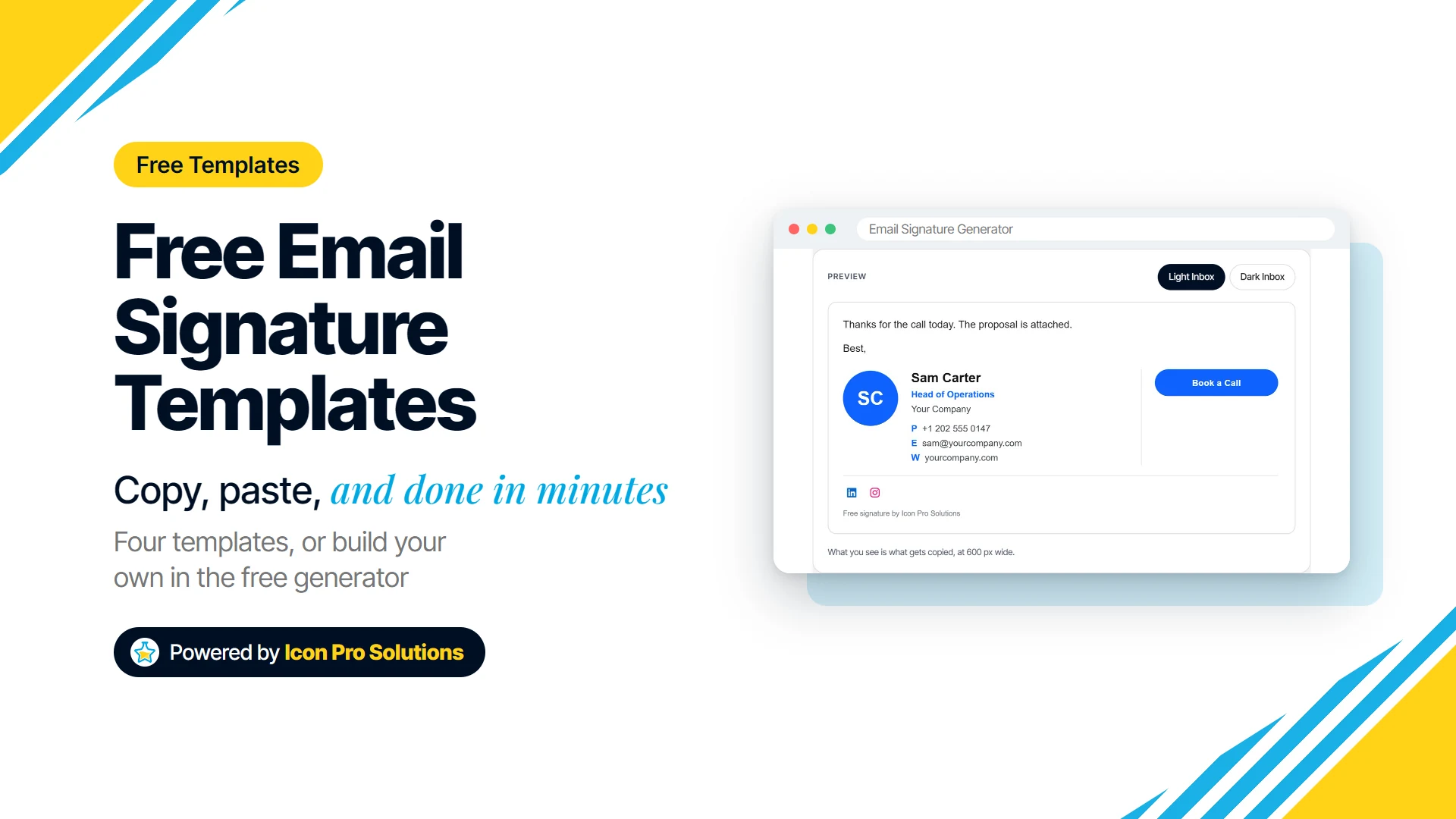
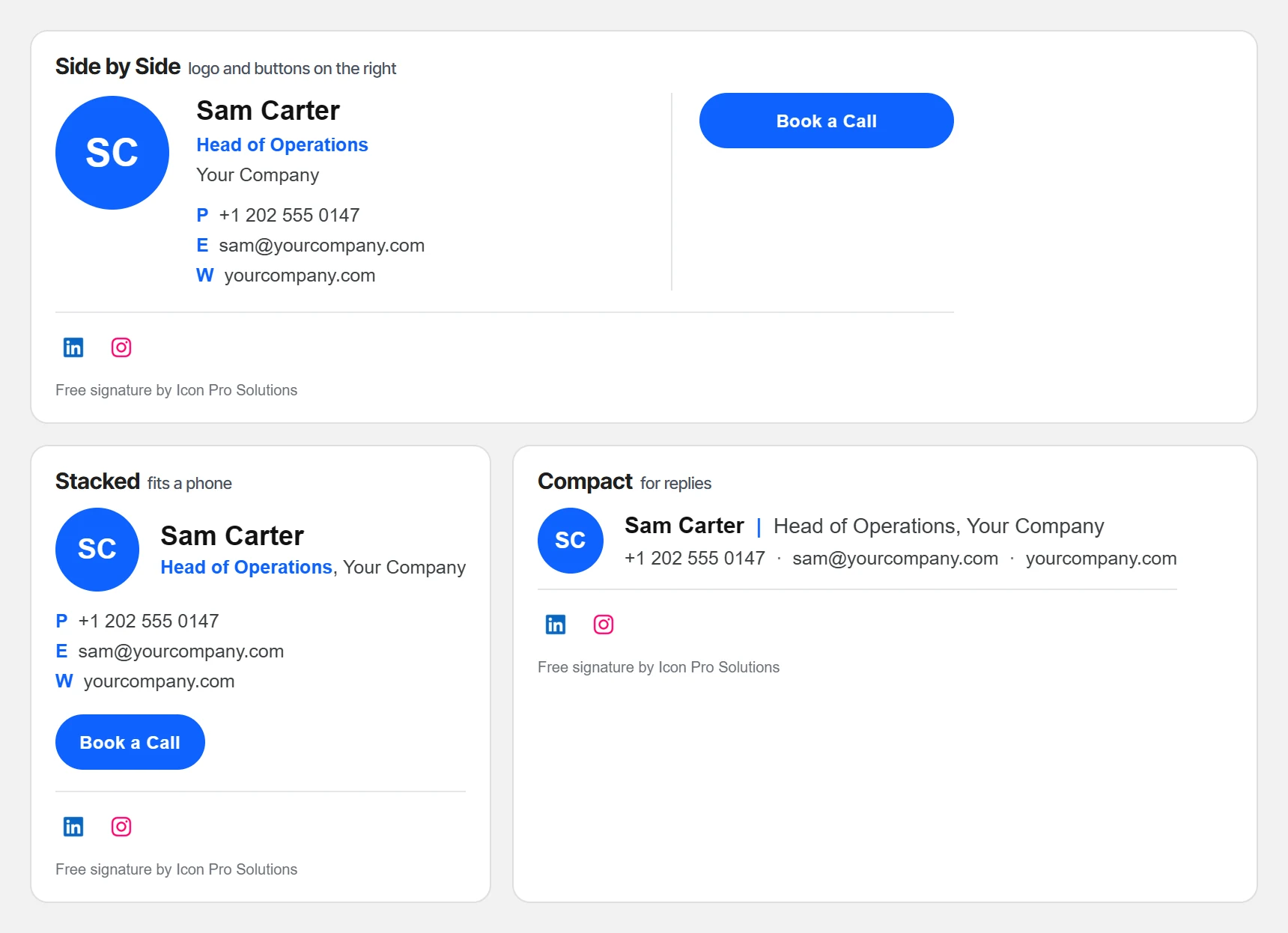
Below are four free email signature templates you can copy, paste and edit, with no sign-up and no watermark. Each one is plain table-based HTML, the format email apps handle most predictably, and each keeps your contact details as real text so they survive when pictures are blocked.
Pick the one that fits how much you need to show, then follow the Gmail or Outlook steps underneath. If you would rather fill in a form than edit code, our free generator builds the same kind of signature from your details.
Key Takeaways
- Build signatures from tables with inline styles: flexbox, grid and style blocks are unreliable in email.
- Keep your name, phone and email as real text, never inside a picture.
- Load pictures from a public https link, and give every one alt text.
- Gmail allows up to 10,000 characters in a signature, and the picture counts toward it.
- Test a new message and a reply, on a phone as well as a desktop.
What makes an email signature work?
Most broken signatures fail for the same handful of reasons. These four rules prevent nearly all of them.
- Use tables, not modern CSS layout. Flexbox and grid are unreliable in email, and several apps strip them. Nested tables with inline styles are old-fashioned, and they work.
- Keep contact details as text. If your phone number lives inside a picture and the picture is blocked, your phone number is gone.
- Host pictures on a public https link. If the file sits behind a login, on a share page or on an internal server, the reader’s email app cannot fetch it.
- Make phone and email clickable with
tel:andmailto:links. On a phone, a tappable number is the difference between a call and a copy and paste.
One expectation to set now: no email signature looks identical everywhere. Outlook, Gmail and Apple Mail each treat HTML differently, so aim for a signature that still reads well when some styling is lost.
Would you rather not edit code?
Our free email signature generator builds a table-based signature like these from a form. Pick a layout, paste a link to your logo, choose your brand color and add up to six social icons, and the preview updates as you type.
It checks a picture link when you paste it and says when it is a share page or an SVG, which most inboxes will not show. When you are done, Copy Signature puts it on your clipboard ready to paste, and nothing you type is kept.
What should an email signature include?
Less than most people think. Your name, your job title and company, one phone number, and a website cover what a reader needs to place you and reach you.
Add a logo if you have one, a photo if you are the brand, and one button if there is a single action you want people to take, such as booking a call. Leave out quotes, long legal text you do not need, and every social network you have ever joined: pick the two or three where people actually find you.
Template 1: minimal text only
The most compatible signature there is. Nothing to block, nothing to break, and it loads instantly.
<table cellpadding="0" cellspacing="0" border="0" style="font-family:Arial,Helvetica,sans-serif;font-size:14px;color:#333333;">
  <tr>
    <td style="padding:0 0 4px 0;font-weight:bold;font-size:15px;">Your Name</td>
  </tr>
  <tr>
    <td style="padding:0 0 8px 0;color:#666666;">Job Title, Company</td>
  </tr>
  <tr>
    <td style="padding:0 0 2px 0;">
      <a href="tel:+10000000000" style="color:#333333;text-decoration:none;">+1 000 000 0000</a>
    </td>
  </tr>
  <tr>
    <td>
      <a href="mailto:[email protected]" style="color:#1a73e8;text-decoration:none;">[email protected]</a>
    </td>
  </tr>
</table>
Template 2: with a logo
Two columns, with the logo on the left and details on the right. Keep the logo around 150 pixels wide or less, and always set width and height so the layout does not jump while it loads.
<table cellpadding="0" cellspacing="0" border="0" style="font-family:Arial,Helvetica,sans-serif;font-size:14px;color:#333333;">
  <tr>
    <td style="padding:0 16px 0 0;vertical-align:top;">
      <img src="https://example.com/logo.png" alt="Company Name" width="120" height="120" style="display:block;border:0;">
    </td>
    <td style="vertical-align:top;border-left:2px solid #eeeeee;padding-left:16px;">
      <div style="font-weight:bold;font-size:15px;padding-bottom:4px;">Your Name</div>
      <div style="color:#666666;padding-bottom:8px;">Job Title, Company</div>
      <div><a href="tel:+10000000000" style="color:#333333;text-decoration:none;">+1 000 000 0000</a></div>
      <div><a href="mailto:[email protected]" style="color:#1a73e8;text-decoration:none;">[email protected]</a></div>
      <div><a href="https://example.com" style="color:#1a73e8;text-decoration:none;">example.com</a></div>
    </td>
  </tr>
</table>
Note the alt text on the picture. If the logo is blocked, the company name still appears in its place.
Template 3: with a headshot and social links
Useful if you are the brand: freelancers, consultants and agents. This version uses text links, which show even when pictures are blocked.
<table cellpadding="0" cellspacing="0" border="0" style="font-family:Arial,Helvetica,sans-serif;font-size:14px;color:#333333;">
<tr>
<td style="padding:0 16px 0 0;vertical-align:top;">
<img src="https://example.com/headshot.jpg" alt="Your Name" width="90" height="90" style="display:block;border:0;border-radius:45px;">
</td>
<td style="vertical-align:top;">
<div style="font-weight:bold;font-size:15px;padding-bottom:4px;">Your Name</div>
<div style="color:#666666;padding-bottom:8px;">Job Title, Company</div>
<div style="padding-bottom:8px;">
<a href="tel:+10000000000" style="color:#333333;text-decoration:none;">+1 000 000 0000</a>
|
<a href="mailto:[email protected]" style="color:#1a73e8;text-decoration:none;">[email protected]</a>
</div>
<div>
<a href="https://linkedin.com/in/you" style="color:#1a73e8;text-decoration:none;">LinkedIn</a>
·
<a href="https://example.com" style="color:#1a73e8;text-decoration:none;">Website</a>
</div>
</td>
</tr>
</table>Text links or social icons?
Both work, and the trade-off is simple. Text links show everywhere, including while pictures are blocked, and icons are quicker to recognize at a glance.
If you use icons, host each one at a public https address, set its width and height, and give it alt text with the network’s name. That way a reader with pictures blocked still sees which network each link goes to.
The generator does this for you: it offers stored icons for 20 networks in Color or Dark, each linked to your profile with the network’s name as its alt text.
Template 4: one line for replies
Long threads get cluttered when a full signature repeats on every reply. Many people set a short signature for replies and forwards and keep the full one for new messages.
<table cellpadding="0" cellspacing="0" border="0" style="font-family:Arial,Helvetica,sans-serif;font-size:13px;color:#666666;">
<tr>
<td>
<strong style="color:#333333;">Your Name</strong> · Company ·
<a href="tel:+10000000000" style="color:#666666;text-decoration:none;">+1 000 000 0000</a>
</td>
</tr>
</table>How do I add it to Gmail?
Gmail’s signature box takes the finished signature, not the code. Save the template as an .html file, open it in a browser, select the signature and copy it, or press Copy Signature in the generator.
- In Gmail, click Settings at the top right, then See all settings.
- On the General tab, scroll to the Signature section and paste into the box.
- Under Signature defaults, choose it for new emails and for replies and forwards.
- At the bottom of the page, click Save Changes.
Gmail’s help page sets a size limit: “You can put up to 10,000 characters in your signature.” It adds that “Your image also counts toward the character limit”, so a long signature with several pictures can be refused, which is why the generator warns you when you get close.
How do I add it to Outlook?
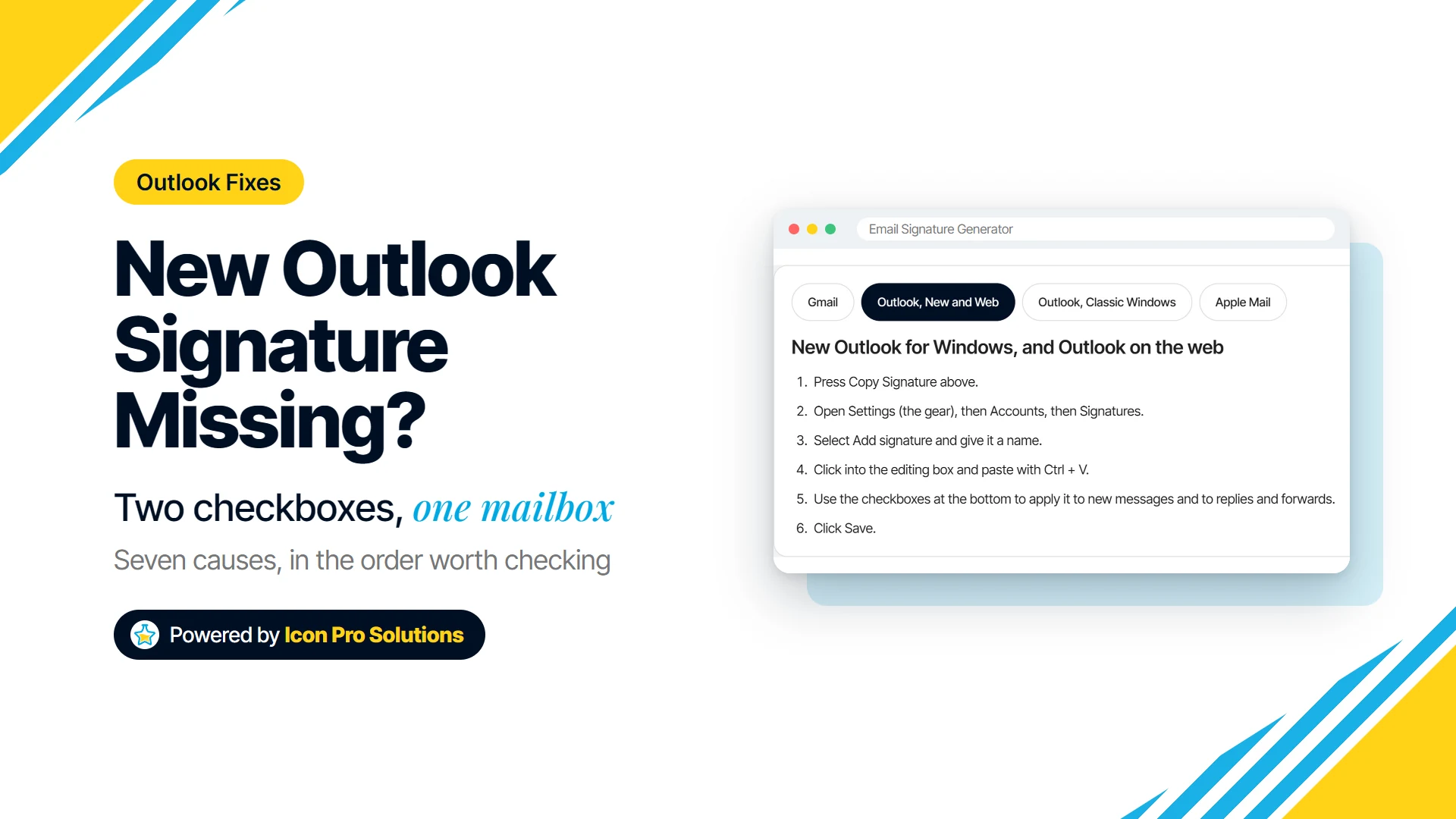
The steps depend on which Outlook you use. For the new Outlook for Windows and Outlook on the web, Microsoft’s path is “Select Settings”, then “Select Accounts > Signatures”, then “Select Add signature”.
Paste the signature into the editing box, then “Use the checkboxes at the bottom to choose whether to apply the signature to new messages and to replies and forwards.” In classic Outlook, open the signature screen from a new email, then pick defaults under “Choose default signature”.
If your signature still does not appear, our guide to a new Outlook signature not showing covers the seven common causes in the order worth checking.
How do I test it before I rely on it?
Rendering differences are the whole problem with email HTML, so do not assume. Send yourself a test and check each of these.
- A new message and a reply, separately. They use different settings and fail independently.
- On a phone as well as a desktop. A wide signature that looks fine on a big screen can wrap or shrink on a narrow one.
- With pictures blocked. If your name and number vanish, they are trapped in a picture.
- In at least one other email app. If you use Outlook, send to a Gmail address and back.
Common problems and what causes them
- The logo does not appear. The picture is not public, the link opens a page instead of the image file, or the reader’s app is holding pictures back.
- Everything is double spaced. Usually paragraph spacing in the editor rather than the HTML. Shift and Enter instead of Enter avoids it.
- It shows on new emails but not replies. The two settings are separate, so set both.
- The layout collapses in Outlook. Almost always a modern CSS layout: convert it to nested tables with inline styles.
- Fonts change. Email apps swap in fonts they have, so stick to common families with a fallback list.
Frequently Asked Questions
Are these email signature templates free to use?
Yes. Copy them, edit them and use them for your business, with nothing to sign up for and no credit needed. The generator is free too.
Why tables instead of modern CSS?
Email apps do not all support modern layout, and several strip it. Tables with inline styles remain the most predictable approach for email, even though nobody would build a website that way today.
Can I use a different signature for replies?
In Gmail and in Outlook, yes. Both let you set one signature for new messages and a different one for replies and forwards, and Template 4 above is made for that.