


A QR code for Google reviews is just a picture of a link. Scan it, and the phone opens the page where a customer can rate and review your business.
That means the code is the easy part. The step that decides whether it works is getting the right link out of your Google Business Profile, and this guide starts there, then covers making the code, where to put it, and the rules Google sets for asking.
Key Takeaways
- Your review link comes from your Google Business Profile: open the profile, select Read Reviews, then Get more reviews, and copy the link.
- Google already makes a QR code for you on that same screen, but only in a computer browser, not on a phone.
- Make your own code when you want your brand colors, a logo in the middle, or an SVG that stays sharp on a big print.
- Ask every customer, never only the happy ones, and never offer a discount or freebie for a review. Google’s policy prohibits both.
- A QR code removes steps, it does not create reviews. The ask, and replying to what people write, do more than the code.
What Do You Need Before You Make a Google Review QR Code?
You need access to your business’s Google Business Profile, because that is where the review link lives. If someone else set the profile up, such as a previous manager or an agency, get added to it first.
Without the profile, you are guessing at the link. The only way to be sure you have the right one is to copy it from the screen Google provides for exactly this.
How Do You Get Your Google Review Link?
You copy it from the Get more reviews screen in your Business Profile. Google’s help page walks through the same path and ends with: “To copy the review link, select Copy.”
- Sign in to the Google Account that manages your Business Profile.
- Open the profile and select Read Reviews.
- Select Get more reviews.
- Select Copy to copy the review link.
- Open the link on a phone and check that it goes to your business, not a different listing.
The same screen offers a ready-made QR code. Google notes a limit: “Currently, reviews QR codes can only be generated on a computer browser, not on mobile devices.” To save it, right-click the code and choose Save image as.
Do You Need a Separate QR Code Generator?
Not always. If Google’s own code suits your counter sign, use it: it comes from the same screen as the link you just copied.
A separate generator is worth it when the code has to fit your design. That usually means your brand colors, your logo in the middle, or a vector file for a large print such as a window decal or a banner.
How Do You Make a Branded Google Review QR Code?
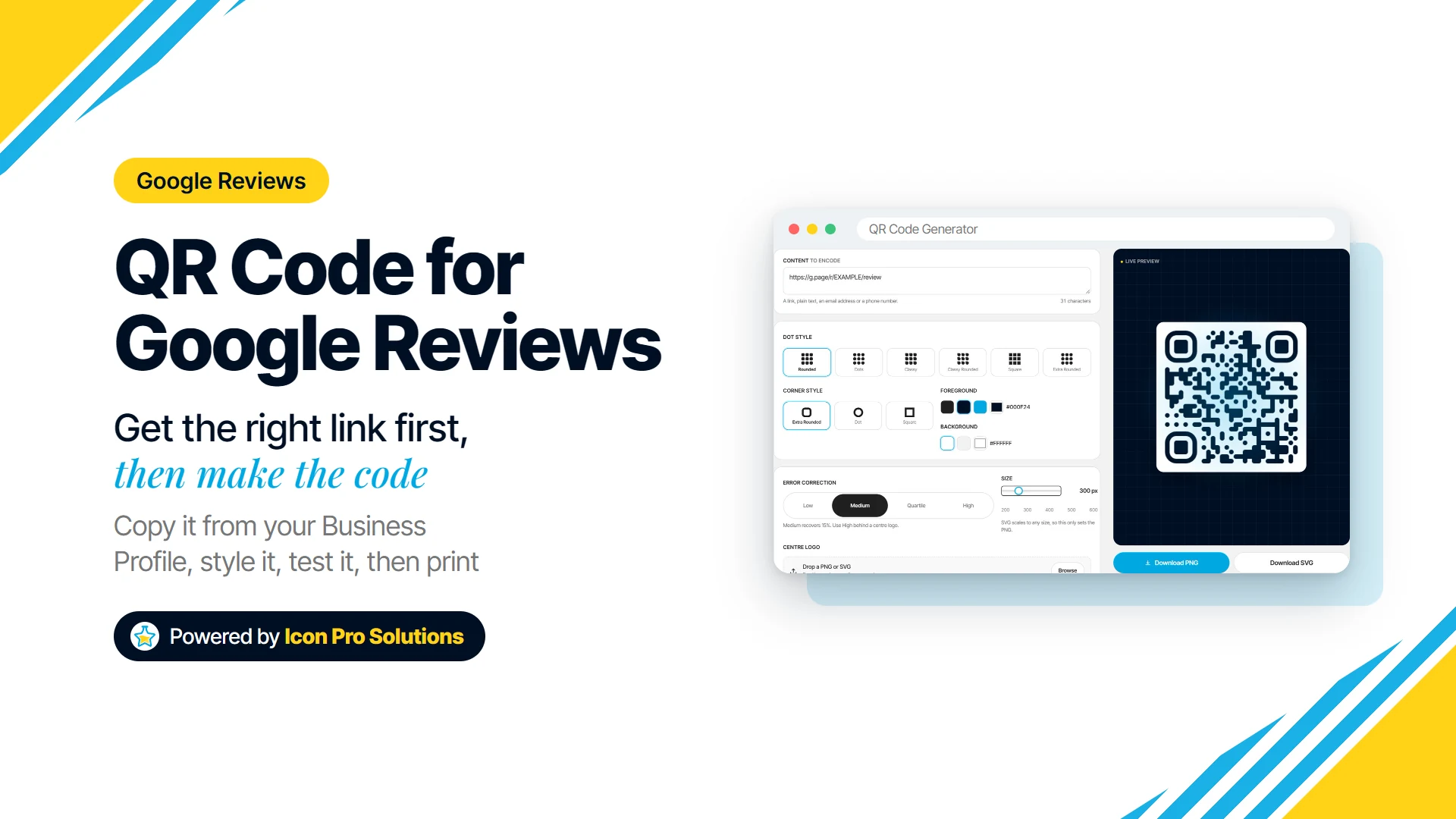
Paste your review link into a QR generator, style it, download it, and test it before you print. Our free QR code generator with logo and color options runs in your browser, with no sign-up and no watermark.
- Paste the review link into the Content box. Paste the whole link exactly as Google gave it to you.
- Pick a dot style and a corner style. There are six dot styles and three corner styles.
- Set the colors. Keep the foreground clearly darker than the background, because light on dark or two similar shades can stop a code from scanning.
- Add your logo if you want one. The tool takes a PNG, JPG, SVG or WebP up to 2MB and raises error correction to High on its own, so the code still reads with the middle covered.
- Download the right file. SVG for anything printed or resized, since it stays sharp at any size, and PNG for screens, at 200 to 600 pixels.
- Test it on two different phones at the size and distance it will actually be used, and confirm the review form opens for the right business.
Two limits to know before you print. The code is static, so it keeps working as long as the link does, but it cannot be changed later: if the link ever changes, you print a new code. The tool also does not count scans, so it cannot tell you how many people used it.
Where Should You Put a Google Review QR Code?
Put it where the customer is at the end of the visit, with a moment to spare. Google’s own suggestions are: “Include it on your receipts”, “Include it in thank you emails”, “Add it at the end of a chat interaction” and “Print and display the QR code in your store”.
| Business | Where the code tends to fit | Why there |
|---|---|---|
| Restaurant or cafe | Table card, check folder, printed receipt | The meal is over and the guest is waiting anyway |
| Salon or spa | Front desk sign, appointment card | The client is paying or booking the next visit |
| Clinic or dental office | Checkout desk, printed visit summary | The visit has ended, away from the treatment room |
| Trades (plumbing, HVAC, landscaping) | Printed invoice, leave-behind card, van decal | The job is done and the customer is looking at the result |
In an email or a text message, send the link rather than the code. A person reading on their phone cannot scan their own screen, and Google’s help page also suggests sending “review requests through email, WhatsApp message, or Facebook post.”
What Are the Rules for Asking for Google Reviews?
Google allows you to ask for reviews, but not to buy them, filter them or pressure people into them. Its Business Profile help states: “Reviews and other user contributions to Google Maps must reflect a genuine experience.” It adds that “Offering incentives, like free or discounted goods or services, to customers in exchange for reviews is considered fake engagement and is strictly prohibited.”
Google’s Maps content policy lists what merchants may not do. That includes: “Discourage or prohibit negative reviews, or selectively solicit positive reviews from customers”. It also says merchants “should not require or pressure users to leave ratings or write reviews while on the premises, nor should they request that specific content be included.”
In practice that rules out a few common habits:
- Review gating. Asking “Did you enjoy your visit?” and sending only the yes answers to Google is selective soliciting. Show the code to everyone.
- Discounts for reviews. “10% off when you leave a review” is an incentive, whatever the wording.
- Staff quotas. The same policy names “Merchants requesting that staff solicit a certain number of reviews”.
The FTC is separate from Google and enforces US consumer protection law. Asked whether a business can request reviews only from customers it thinks are happy, the FTC’s Q&A answers: “The rule does not contain a specific prohibition against such conduct. But this practice could violate the FTC Act.”
Asking everyone, with nothing attached, is the approach both Google and the FTC point to.
Will a QR Code Get You More Google Reviews?
It can make leaving one easier, but it will not make anyone want to. A code saves a customer from searching for your business and hunting for the review button, and that is all it does.
What moves people is the ask itself: a short, plain request at the right moment, from someone they just dealt with. Google’s advice also points past the code: “Reply to reviews: Show customers that their feedback matters.”
A few negative reviews are not all bad news either. Google’s help page notes that “A mix of positive and negative feedback often feels more trustworthy.”
FAQs
Can a Customer Leave a Review Without a Google Account?
No. Google’s help page says “Customers must be signed into a Google Account to leave a review,” and adds that “They can set one up with a non-Gmail email address.” So anyone who is not signed in meets a sign-in step before the review form.
Does a Google Review QR Code Expire?
A static code like the ones our generator makes does not expire, because the link is written into the pattern itself. It works for as long as the link it holds keeps working, so test your printed codes again from time to time.
What Should You Do About a Negative Review?
Reply to it calmly and in public, and keep the details private. Google’s advice is to “Never share a reviewer’s private information or engage in personal attacks,” and to “Respond in a timely manner”. If you believe a review breaks Google’s content policies, its help page says “you can flag it.”
Can I See How Many People Scanned My Code?
Not with our generator, which does not count or track scans. The honest measure is the one that matters anyway: whether new reviews arrive in your Business Profile after the code goes up.
If you want a hand with the website those customers will visit next, book a free call with us.