



If your signature disappeared after moving to the new Outlook, the most common reason is that it is not set as a default. The new Outlook signature has two separate checkboxes, one for new messages and one for replies and forwards, and ticking one does not tick the other.
The second most common surprise is where the signature now lives. For most work and personal Microsoft accounts it is stored in your mailbox, not on your computer, so the old Signatures folder on your PC can be empty by design.
Key Takeaways
- In the new Outlook, signatures are under Settings, Accounts, Signatures, and two checkboxes at the bottom decide where one is added.
- A signature that shows on new emails but not on replies is almost always the second checkbox, not a fault.
- Microsoft 365 and Outlook.com mailboxes keep signatures in the mailbox, so there may be no signature file on your computer to find.
- If the text arrives and the logo does not, the signature works and the picture link does not.
- Test a new message and a reply separately, because they fail independently.
Where are the signature settings in the new Outlook?
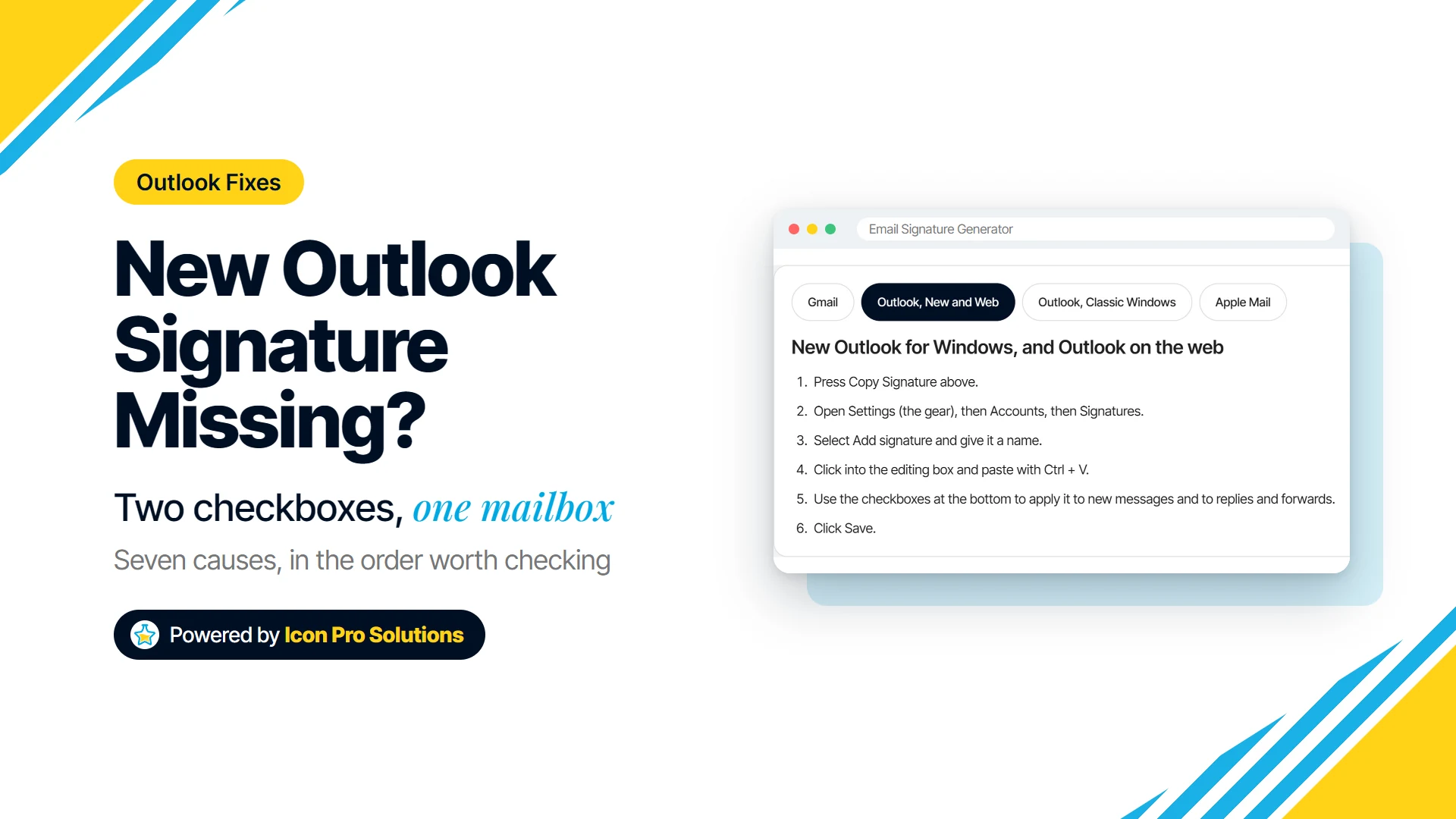
Microsoft’s own instructions start with “Select Settings”, then “Select Accounts > Signatures”, then “Select Add signature”. This applies to the new Outlook for Windows and to Outlook on the web, which share the same settings.
If an older guide sent you to Mail, then Compose and reply, that is an earlier layout. Use the Accounts route above.
Why does my signature show on new emails but not on replies?
Under the editing box, Microsoft says to “Use the checkboxes at the bottom to choose whether to apply the signature to new messages and to replies and forwards.” Both start unticked, so a signature can exist and never be added.
Tick both, save, then send yourself a test and reply to it. Check both paths, because they fail independently.
Why is my Signatures folder empty?
Classic Outlook kept signatures as files on your computer, at the path below. Many people go looking there after a move and find nothing.
C:\Users\[YourUsername]\AppData\Roaming\Microsoft\SignaturesMicrosoft’s roaming signatures page explains the change: “signatures will be stored in the user’s mailbox and they will be available on all devices where that account is configured.” To edit one, use the settings in Outlook rather than hunting for a file.
There is a catch on who gets this. “The roaming signatures feature will be available to users with mailboxes on Microsoft 365 or Outlook.com.” Accounts on Exchange on-premises servers, third-party email services and POP or IMAP keep their signatures locally.
Seven causes, in the order worth checking
1. No default signature is set
Covered above, and the first thing to check. It takes ten seconds and explains most missing signatures.
2. Replies and forwards use a separate checkbox
Also covered above, and worth listing on its own because the symptom is so specific. If the signature appears on new emails and never on replies, this is almost certainly the cause.
3. Your change has not reached this device yet
A roaming signature is saved to the mailbox and then picked up by your other devices. Microsoft does not say how long that takes, so a change made on one computer may not show on another straight away.
Give it a little time before you start again. Creating the signature a second time while the first is still on its way is how people end up with two.
Signs you are looking at a sync delay rather than a fault:
- the signature is right in Outlook on the web but missing in the desktop app, or the other way round
- it appeared correctly, then went back to an older version
- it is right on one of your computers and wrong on another
4. You are switching between classic and new Outlook
Classic Outlook has its own signature screen: “On the Message menu, select Signature > Signatures.” Its defaults are set under “Choose default signature”, in New messages and Replies/forwards boxes.
Microsoft notes that Outlook Desktop “added roaming signatures starting in Version 2303 and higher”, so an older classic install still works from local files only. Pick the client you are actually fixing, and stay in it while you test.
5. The text shows but the picture does not
If your name and number arrive and your logo does not, the signature is working and the image is not. The usual reasons are below.
- The picture is not public. If it sits behind a login, on a share page or on an internal server, the reader’s email app cannot fetch it.
- The link points at a page, not the picture. The address should open the image file on its own in a new browser tab.
- The reader’s email app holds back pictures until they allow them. Many do, and nothing on your side can change that.
- The picture is an SVG. Use a PNG or JPG version, which every inbox shows.
Our free email signature generator checks a picture link the moment you paste it, and says when it is a share page, an http link or an SVG. It also gives every picture alt text, so the reader still sees what it was when pictures are blocked.
6. The signature was pasted as an image
Some signatures are one designed picture with the phone number drawn into it. When pictures are blocked it shows nothing, and nobody can tap the number.
Keep your name, title, phone and email as real text. If yours is one big image, rebuild it as text with pictures only where they help.
7. The Outlook profile is the problem
This is the least common cause, so check it last. If a signature keeps reverting or disappearing after you set it, while a colleague on the same setup has no trouble, the profile itself may be at fault.
Follow Microsoft’s current guidance for your version to test with a new profile, rather than an older walkthrough. Profile steps differ between classic and new Outlook.
Still not working? Check these in order
Stop at the first answer that changes the symptom.
- Is the new messages checkbox ticked?
- Is the replies and forwards checkbox ticked?
- Did you change it recently on another device? Give it time to arrive.
- Is it right in Outlook on the web? If so, the problem is the app, not the signature.
- Does the text show without the picture? Then fix the picture link.
- Are you testing in the same Outlook you set it up in?
- Does a new profile behave differently?
Should I rebuild the signature?
If the signature was made years ago, pasted from a design file or lives in one image, rebuilding it is often faster than fixing it. A signature built from tables with the styles written into each element holds its layout in classic Outlook as well as on a phone.
Our free email signature generator builds one that way from your own details, logo link and brand color, then copies it ready to paste into Settings, Accounts, Signatures. Nothing you type is kept: it stays in your browser tab.
Prefer to start from code? Our free email signature templates are four table-based signatures ready to copy and edit.
Frequently Asked Questions
Where are new Outlook signatures stored?
For Microsoft 365 and Outlook.com mailboxes, in the mailbox itself, so they follow you to every device where that account is set up. Exchange on-premises, third-party and POP or IMAP accounts keep signatures on the computer.
Why does my signature show on new emails but not on replies?
The two are separate checkboxes under the signature editor. Tick the one for replies and forwards as well as the one for new messages.
My text shows but my logo does not. Why?
The signature is working and the picture is not. Usually the picture is not public, the link opens a page instead of the image file, or the reader’s email app is holding pictures back.