



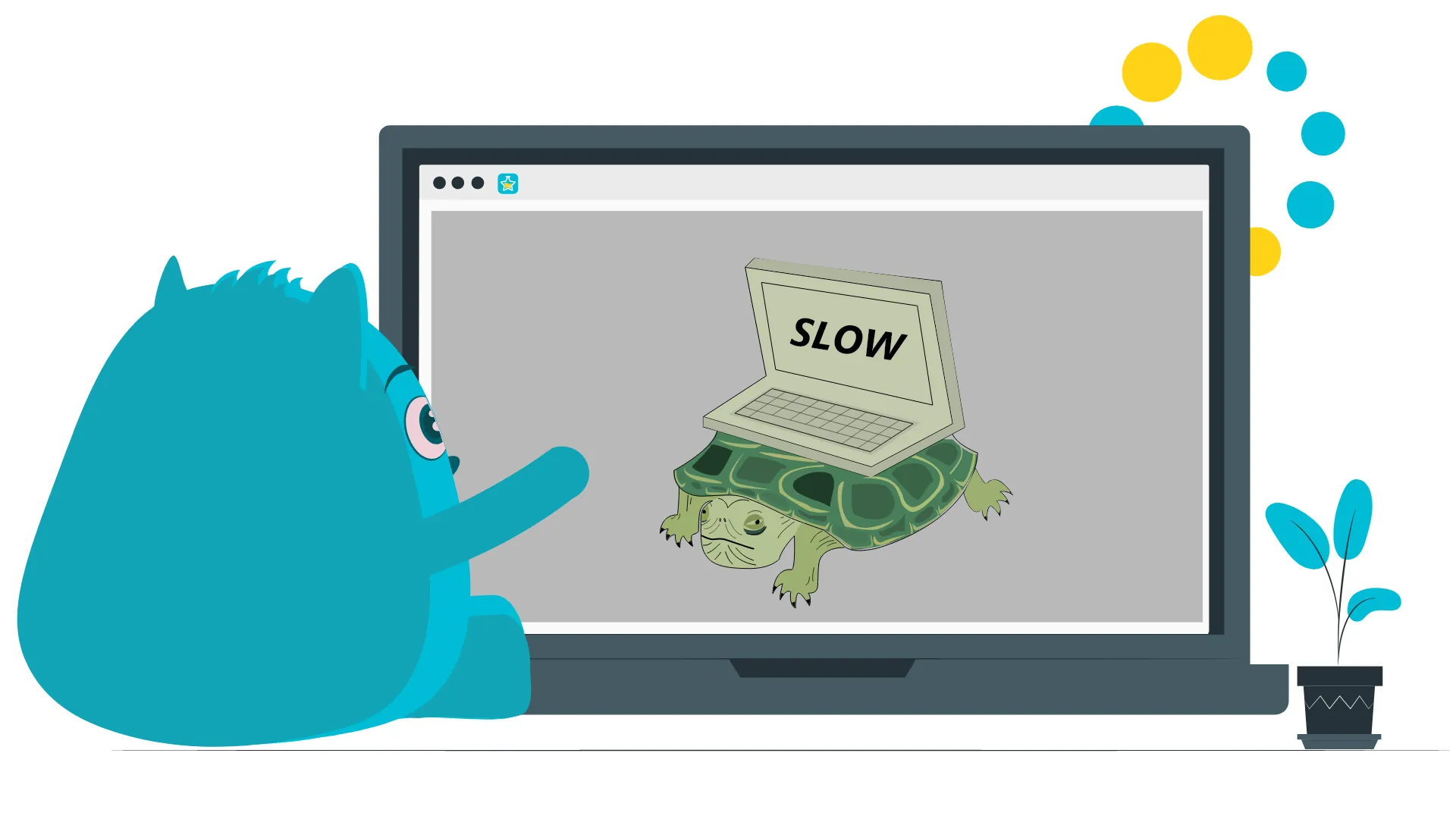
A slow Windows computer usually has a specific cause: too many apps starting with Windows, a nearly full drive, missing updates, malware, heavy background activity, or hardware that is getting old or too hot. The steps below follow Microsoft’s own performance guide, with Windows 11 menu paths.
Work through them in order. If one app turns out to be the cause, you can stop there.

Still on Windows 10? Microsoft ended support for Windows 10 on October 14, 2025, and no longer provides free software updates, technical assistance or security fixes for it. If your PC meets the Windows 11 requirements, upgrading is worth considering; if it does not, think carefully before using it for banking or business work.
First, Find What Is Slowing Your Computer Down
Before changing settings on a slow Windows computer, find out what is using its resources. Press Ctrl + Shift + Esc to open Task Manager. On the Processes page, sort by CPU, Memory or Disk to see which apps use the most.
If one app stays at the top, deal with that app first: update it, restart it or uninstall it. Close only apps you recognize.
12 Safe Steps for a Slow Windows Computer
1. Install Windows Updates and Optional Driver Updates
Select Start > Settings > Windows Update > Check for updates, install what it finds and restart if asked. Driver updates are under Windows Update > Advanced options > Optional updates.
2. Run a Malware Scan
Select Start > Settings > Privacy & security > Windows Security > Virus & threat protection, then Quick scan. Use one security program at a time, because two real-time scanners can conflict and slow the PC further.
3. Free Up Disk Space With Storage Sense
Select Start > Settings > System > Storage, turn Storage Sense on, or choose Run Storage Sense now. Storage Sense clears temporary files and the Recycle Bin on the system drive, usually C:.
It leaves your Downloads folder and OneDrive files alone unless you set it to manage them, so check those settings before changing them.
4. Uninstall Apps You No Longer Use
Select Start > Settings > Apps > Installed apps, open the three-dot menu next to an app and choose Uninstall. Removing unused software frees space and stops its background services.
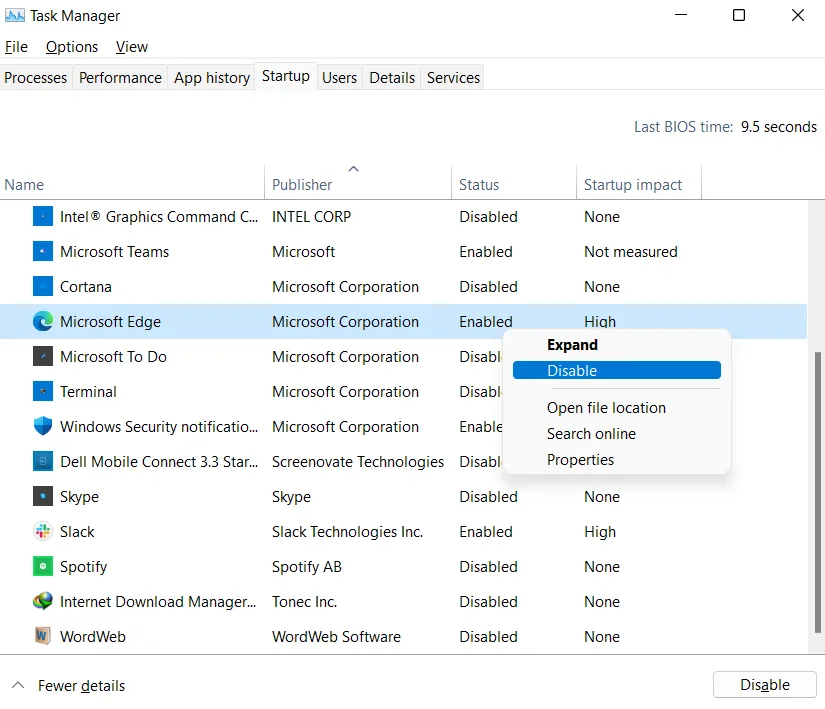
5. Disable Startup Apps You Don’t Need
In Task Manager, select Startup apps, right-click an app and choose Disable. Leave security software and the drivers for audio, graphics or the touchpad enabled.
6. Turn Off Background Activity
Select Start > Settings > Apps > Installed apps, open an app’s three-dot menu and choose Advanced options. Under Background app permissions, select Never. Not every app has this option, and apps that sync files or show security alerts should keep it.
7. Adjust Visual Effects for Best Performance
Select Start, type Adjust the appearance and performance of Windows and open it. On the Visual Effects tab, select Adjust for best performance.
8. Set Power Mode to Best Performance
Select Start > Settings > System > Power & battery, and in the Power mode list select Best performance. Microsoft notes that this uses more power, drains a laptop battery faster and can make the device run warmer.
9. Optimize Your Drives
Windows optimizes drives automatically once a week by default. To run it yourself, search for defrag, open Defragment and Optimize Drives, select the drive and choose Optimize.
Hard drives are defragmented and SSDs are trimmed, so you don’t need a separate defrag tool.
10. Watch Resource Usage
Keep Task Manager’s Performance page open while you work. If memory stays nearly full with only a few apps open, the computer may simply need more RAM.
11. Turn Off Unnecessary Notifications
Select Start > Settings > System > Notifications and turn off the apps you don’t need alerts from.
12. Close Unused Apps and Restart
Close apps and browser tabs you are not using, then select Start > Power > Restart. A restart clears temporary problems and finishes pending updates, but a slowdown that keeps coming back has a cause worth finding.
When the Problem Is Heat or Hardware
A PC that slows down after a few minutes of heavy work may be too hot: loud fans, a hot case or sudden shutdowns are the signs. Keep the vents clear, and use a laptop on a hard, flat surface.
On a slow Windows computer with old hardware, settings can only do so much. On a computer that still uses a mechanical hard drive, moving to an SSD often makes the most noticeable difference to startup and loading, and more RAM helps when memory is always full. Back up your files before changing any hardware.
What Not to Do
- Don’t delete Windows system folders by hand.
- Don’t disable every startup item without checking what it is.
- Don’t run two antivirus programs with real-time protection at once.
- Don’t install registry cleaners or “PC booster” apps from untrusted websites.
- Don’t delete your Downloads or cloud files without checking them first.
- Don’t force Windows 11 onto hardware that doesn’t meet its requirements.
When to Get Professional Help
Get a technician involved if the drive clicks or grinds, Windows reports disk errors, you see repeated blue-screen errors, or malware comes back after removal. Back up your files first.
For more practical guides, browse the Icon Pro Solutions blog or our free online tools.
FAQ: Speeding Up a Slow Windows Computer
Why is my Windows computer so slow?
Usually too many startup apps, a nearly full drive, missing updates, malware, heavy background activity, or old or overheating hardware.
Does deleting temporary files speed up Windows?
It helps when the system drive is nearly full. It will not fix failing hardware, malware or too little RAM.
Should I disable every startup app?
No. Disable only apps you recognize and don’t need right after signing in.
Is Best performance mode safe?
Yes, but it uses more power, drains a laptop battery faster and can make the device run warmer.
Should I defragment an SSD?
No. Windows trims SSDs automatically; defragmenting is for hard drives.
Is Windows 10 still supported?
No. Microsoft ended support for Windows 10 on October 14, 2025.