



To track team tasks and deadlines, put every task in one shared place, give each one a single named owner and a due date, and review what is overdue every week instead of waiting for someone to mention it. Then close finished work with a real quality check, so you know who delivers well and not just who sounds busy.
This guide is for team leads, agency owners and small business owners running a team of 5 to 50 people. It covers the method first, then shows how each step works in Icon Planner, the task planner we build.
Key Takeaways
- Deadlines often slip because work lives in chats, spreadsheets and people’s heads, so nobody sees the late task until it is already late.
- Every task needs one place, one or more named owners and a date. A task without a date can never be overdue, so it is easy to leave forever.
- Breaking a task into checklist steps gives more realistic deadlines, because people routinely underestimate how long their own work will take.
- Review only what needs attention: overdue, unassigned and stuck work. Reviewing everything every week wastes the meeting.
- Judge quality with a score and a revision record for each closed task, not by feel. Patterns over a quarter are fairer than impressions from last week.
Why Do Team Tasks and Deadlines Slip?
Tasks slip because nobody can see them slipping. A request arrives in a chat, gets a thumbs up, and then competes with forty other messages for attention.
Spreadsheets help for a while, but someone has to update them by hand, and they stop being current the week that person is busy. The result is the same: you find the overdue work when a client asks for it.
There is also a human reason. Writing for the Society for Personality and Social Psychology, psychologist Roger Buehler defines the planning fallacy as “an optimistic prediction bias in which people underestimate the time it will take them to complete a task, despite knowing that similar tasks have typically taken them much longer in the past.” Your team is not careless: they are human, and a good tracking system plans for that.
How to Track Team Tasks and Deadlines in 6 Steps
1. Put Every Task in One Place
If a task exists only in a chat thread, it does not exist for anyone else. The first rule is simple: if it is not in the tracker, it is not a task yet.
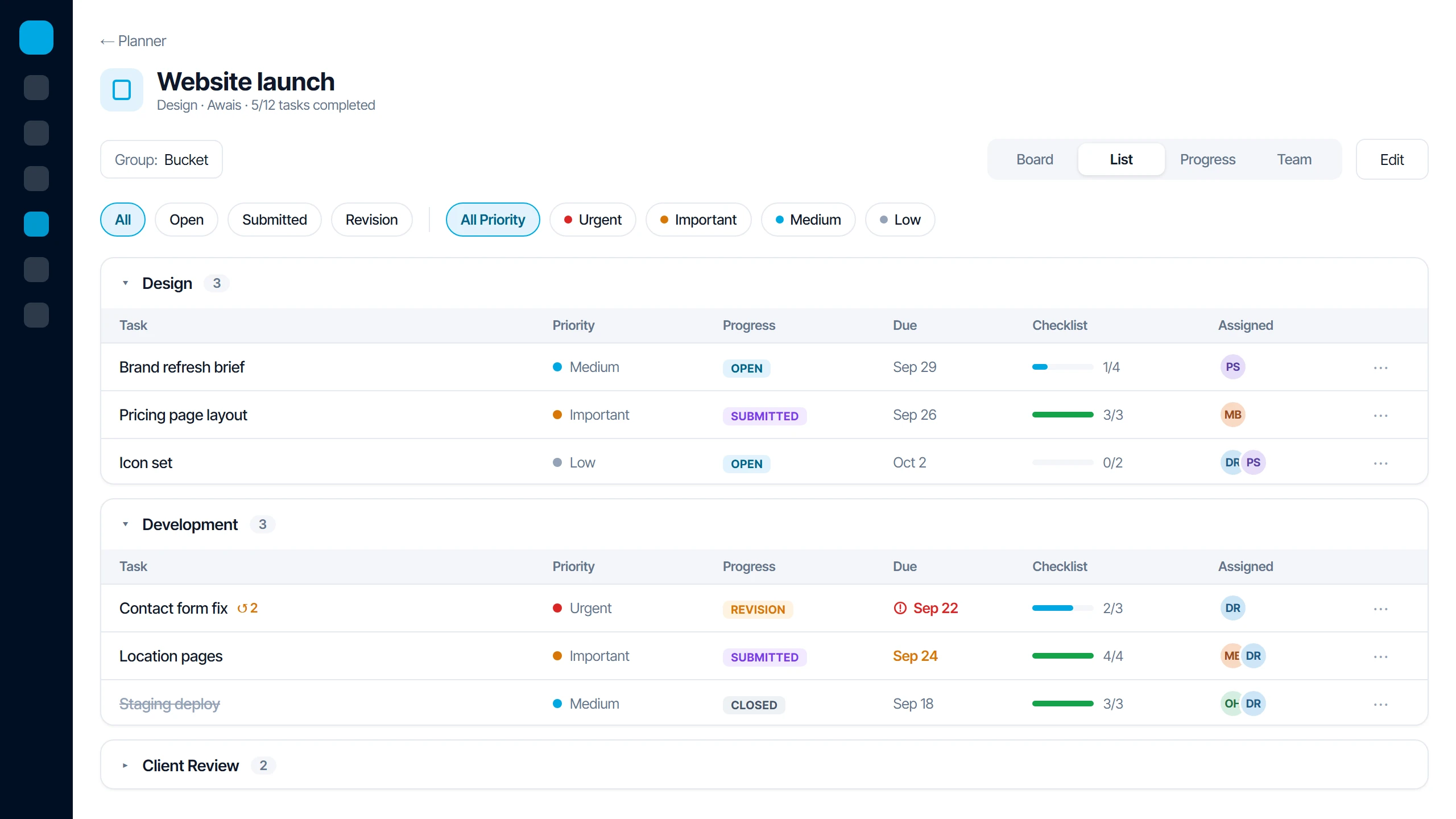
Group tasks the way your team actually works, such as by client, project stage or department. In Icon Planner each plan holds buckets, and every task sits in a bucket with its title, notes, priority, progress, dates, assignees, checklist and labels.
2. Give Every Task a Named Owner and a Date
“The team will handle it” usually means nobody will. Every task needs a named person responsible, and a due date that makes it possible to be late.
Some tasks genuinely need two or three people, such as a designer and a developer on the same page. Icon Planner lets you assign one person or several, so shared work is still owned by named people rather than by a group.
3. Break Big Tasks Into Checklist Steps
A task called “Build the website” is impossible to estimate and impossible to check on. A list of eight smaller steps shows exactly where the work stands.
This is also one of the fixes psychologists recommend for bad estimates. Buehler, who studies the planning fallacy, lists “decomposing the plan into smaller steps (unpacking)” among the strategies that help people make more realistic predictions. In Icon Planner every task has a checklist, and its progress shows on the task’s row.
4. Review What Needs Attention, Not Everything
A weekly review of every task turns into a status meeting nobody wants. Look only at what is overdue, what has no owner, and what has not moved.
Icon Planner’s List view groups tasks by bucket, assignee, priority or progress, and filters down to what needs attention. Overdue work is flagged in red, and the list updates live for the whole team, so everyone sees the same picture at the same time.
5. Close Work With a Quality Check, Not a Thumbs Up
“Done” in a chat tells you the work was sent, not that it was right. Rework that is never recorded makes a slow, careful person look the same as a fast, careless one.
In Icon Planner, submitted work is either closed with an accuracy score for each person or sent back for revision. The revision feedback stays on the task, so the next person to pick it up can see what was wrong and why.
6. Use Your Own History to Set the Next Deadline
The better way to set a deadline is to look at how long similar work actually took, not how long you hope it will take. Psychologists call this taking an “outside view”: basing the estimate on prior experience rather than on the ideal plan.
That only works if you have the history. In Icon Planner every closed task feeds each person’s accuracy, on-time rate and revisions, by week, month, quarter or year, which gives you something real to plan the next deadline against.
How Do You Judge Quality Fairly Instead of by Feel?
Judge quality from the record, not from memory. Memory favors whoever spoke up last and whoever finished the most visible task.
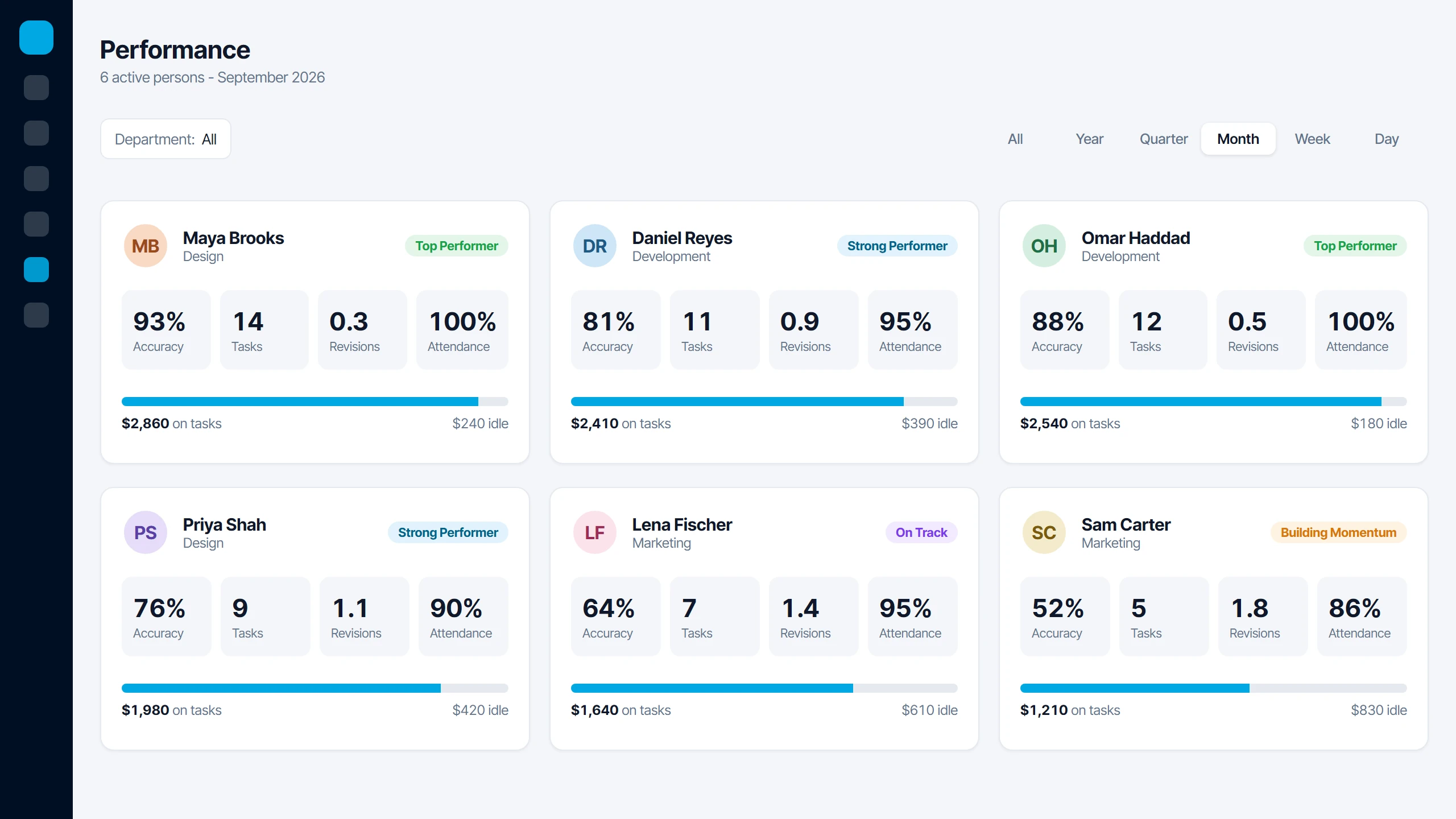
Icon Planner’s Performance view shows each person’s accuracy, on-time rate and revisions, and places them in tiers from Top Performer to Getting Started. You can filter by department and date range, so you compare people doing similar work over the same period.
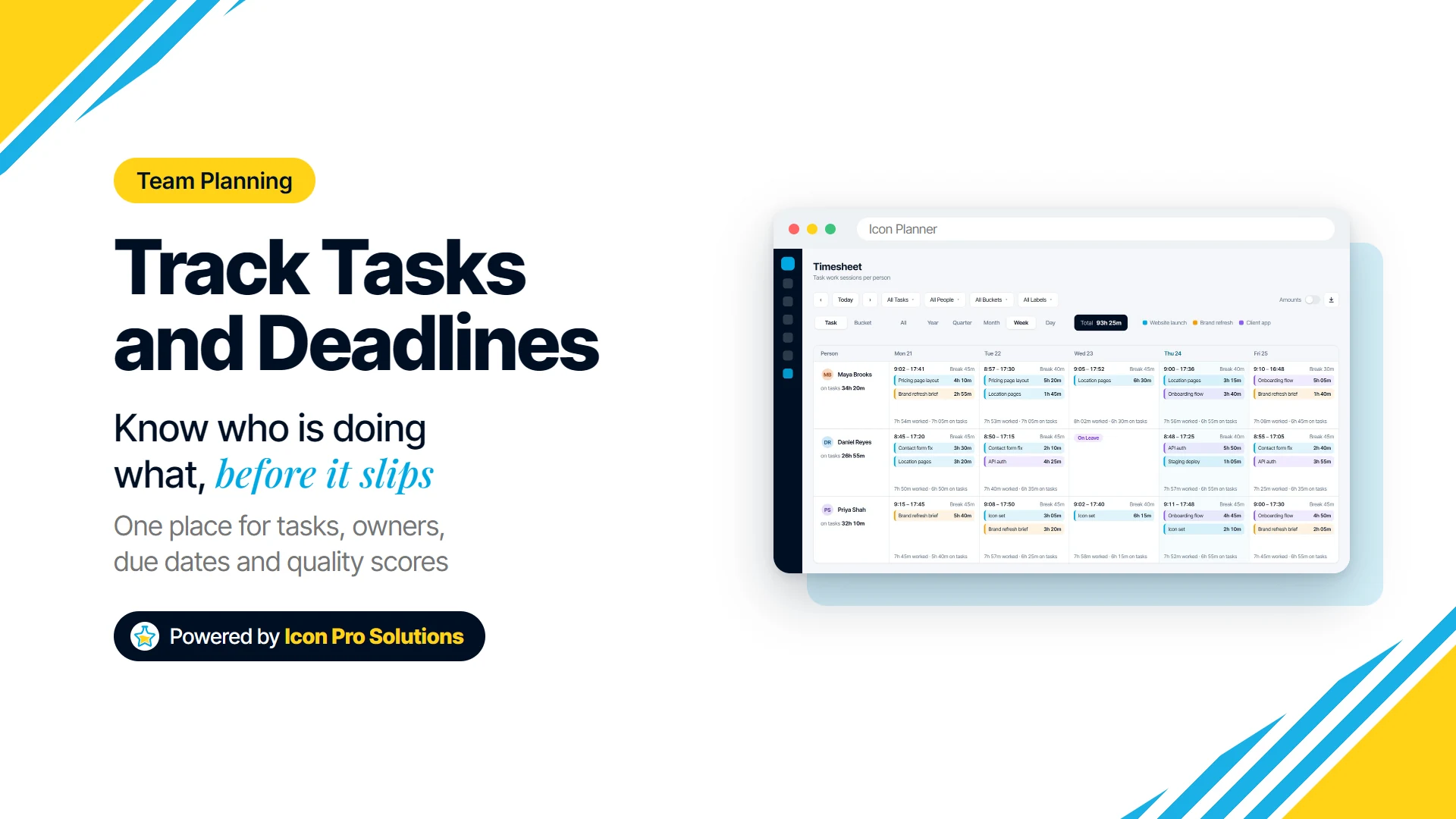
Time is the other half of the picture. Icon Planner’s Timesheet records each work session from the task timers and shows it next to attendance, so worked and untracked time sit side by side. Pay figures stay hidden until you turn them on, and the timesheet exports to Excel.
What Task Software Cannot Fix
A tracker shows you the work. It does not decide which work matters most, and if everything is marked high priority, nothing is.
It will not fix a team that has more work than hours either. If the list is red every week, the answer is fewer commitments or more people, not better tracking.
Scores are only as fair as the person giving them. Agree what “accurate” means for each type of task, and talk to someone before a low score surprises them.
A Weekly Routine That Keeps Deadlines Honest
- Monday: check that every new task has an owner, a date and a checklist.
- Midweek: filter to overdue and stuck work, and ask the owner one question: what is blocking it?
- Friday: close submitted work with a score, or send it back with clear feedback.
- Monthly: look at on-time rate and revisions by person, and adjust deadlines and workloads to match what really happens.
Is Icon Planner Right for Your Team?
Icon Planner suits a team that runs many tasks at once, such as an agency, a studio or an operations team, and needs to see who is doing what without chasing people. It fits best if you want deadlines, quality scores and time in one place, with Board, List, Progress and Team views for different ways of working.
You can see Icon Planner working on our software page. If you would like to talk through whether it fits how your team works, book a free consultation with us.
FAQs
Is a Spreadsheet Enough to Track Team Tasks?
For two or three people with a handful of tasks, often yes. It stops working when several people edit it, when nobody owns keeping it current, or when you need to see overdue work and quality over time without building it by hand.
Should One Task Ever Have More Than One Owner?
Yes, when the work genuinely needs more than one person, but each person should still be named. Scoring each person separately, as Icon Planner does, keeps shared work from hiding who did what.
How Do You Stop Tracking From Feeling Like Micromanagement?
Track outcomes and dates, not minutes, and review the list rather than the people. Share the same view with the whole team, so the tracker is a common picture of the work instead of a manager’s private report.
What Should You Do When a Deadline Is Already Missed?
Move the date to a realistic one straight away and note why it slipped. A task that stays red with an old date teaches the team to ignore red, and the reason behind the slip is what improves the next estimate.