



Recap
In the last blog, we discussed some limitations and possibilities of working with Adobe Illustrator. Bloop also highlighted the Illustrator’s potential for creativity and invention in the journey of UI design.
The Illustrator mini project, step by step
Now let’s dive into design by working on a mini project using this amazing tool.
- Select rectangular shape
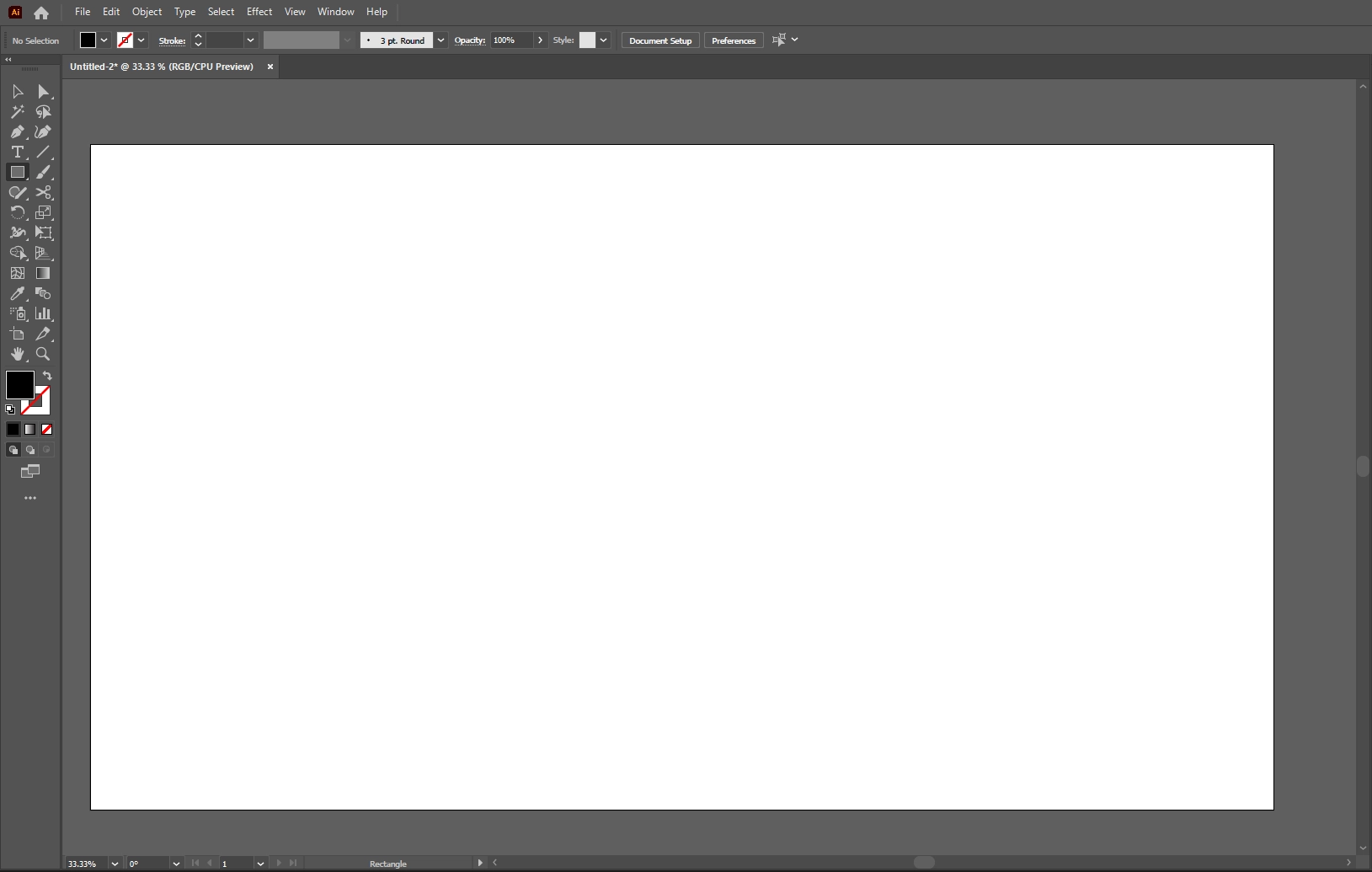 2. Create a rectangle
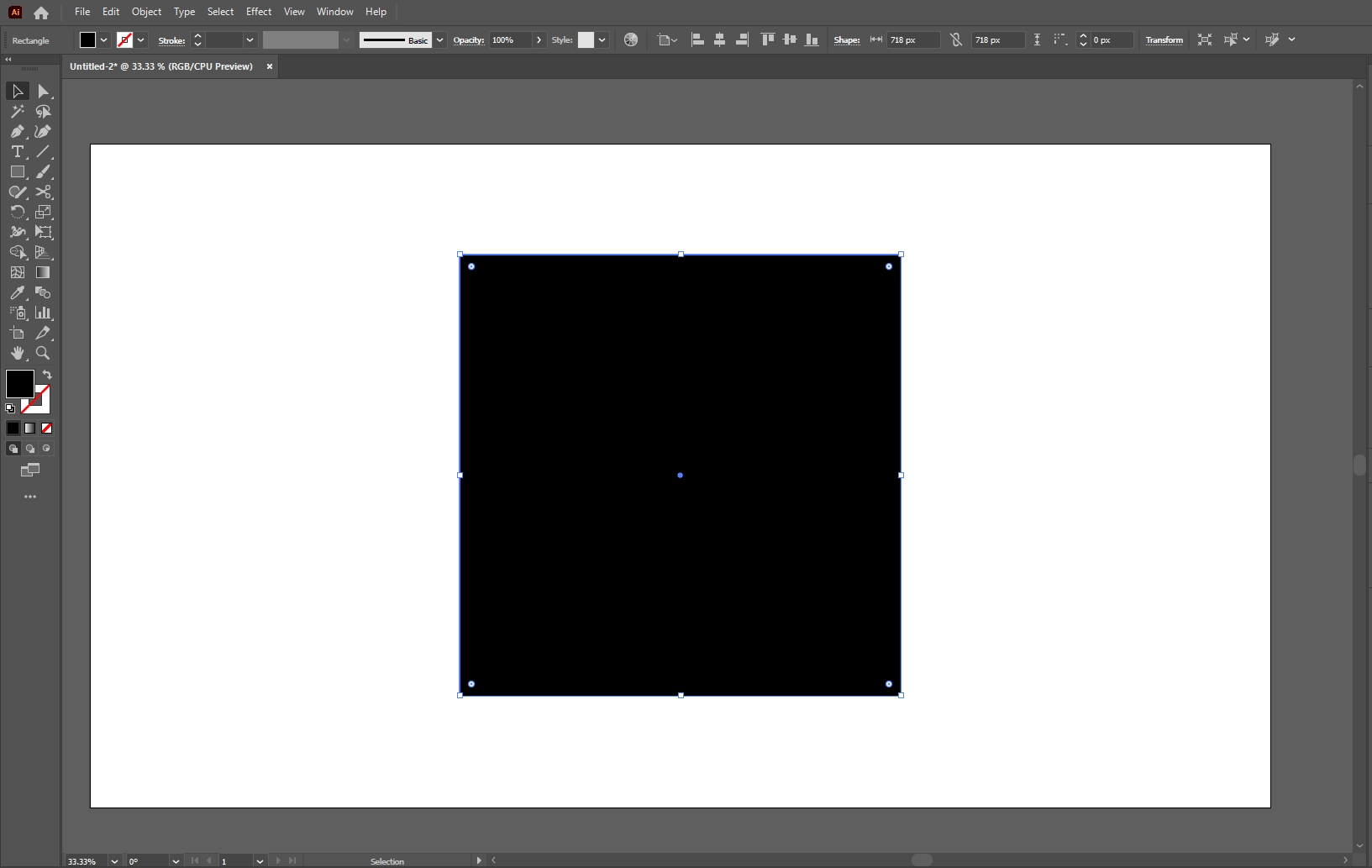 3. Change its color from right hand side
 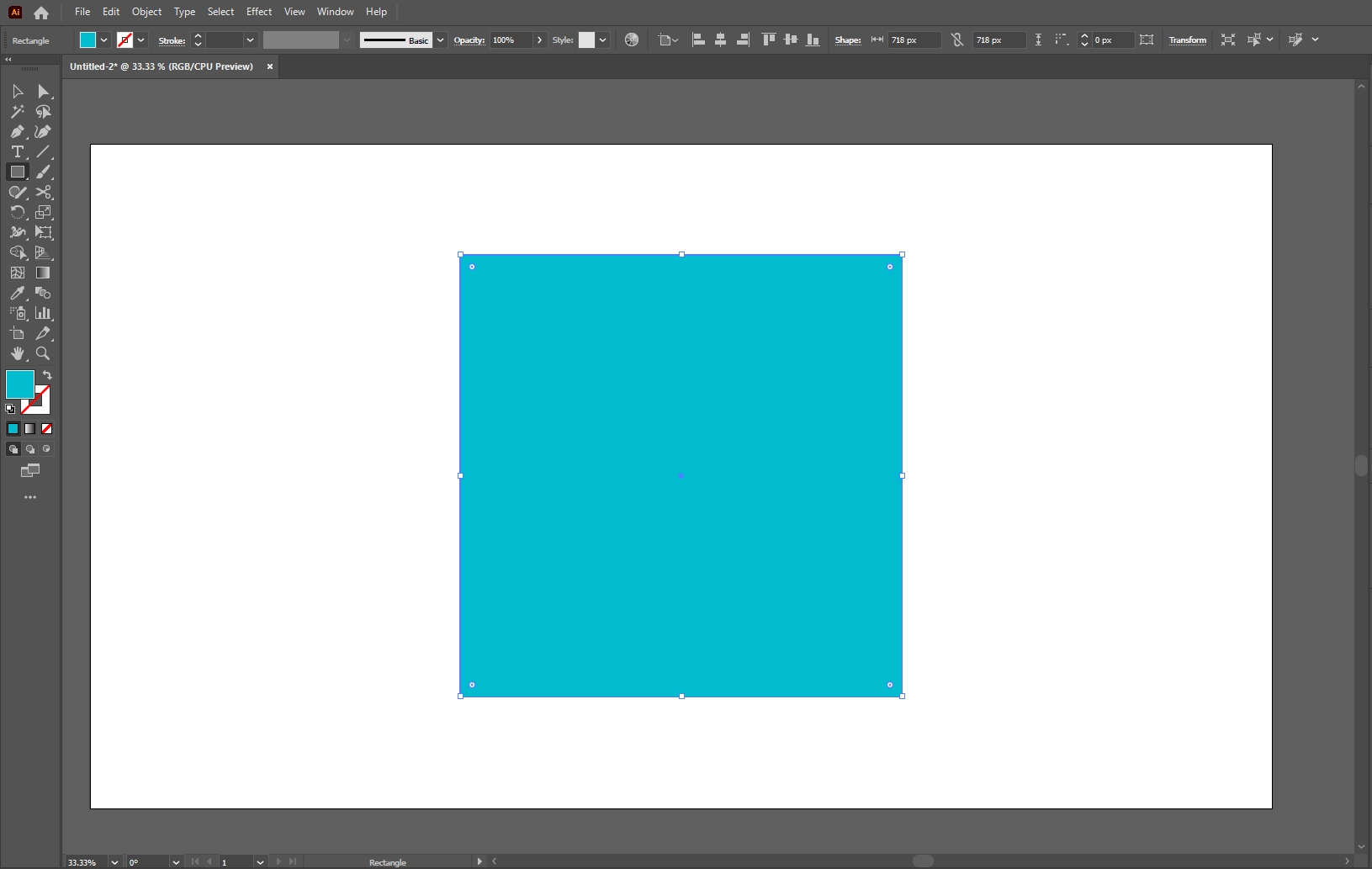 4. Create a duplicate by using Ctrl + f
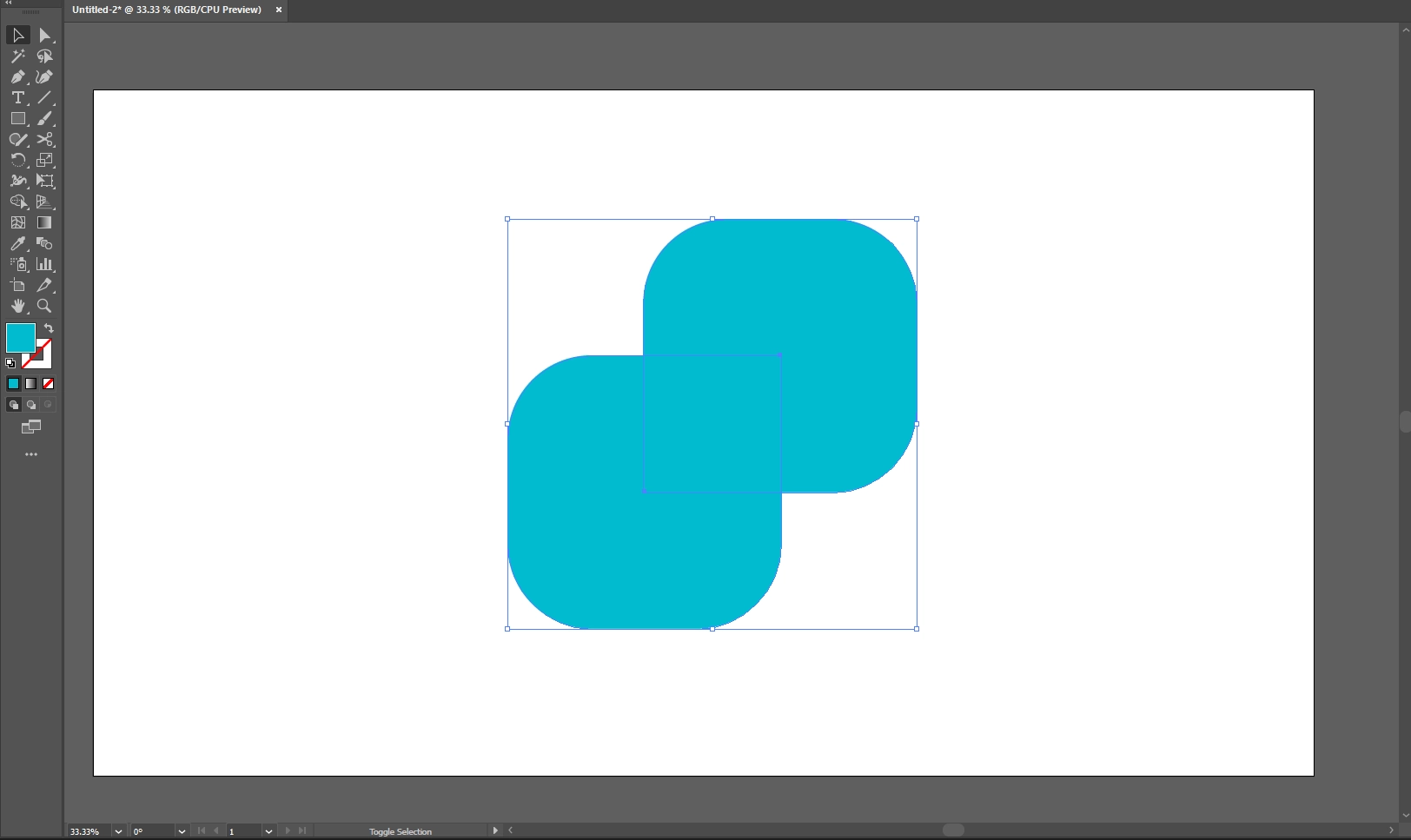 5. Round corners by dragging small dots at corners
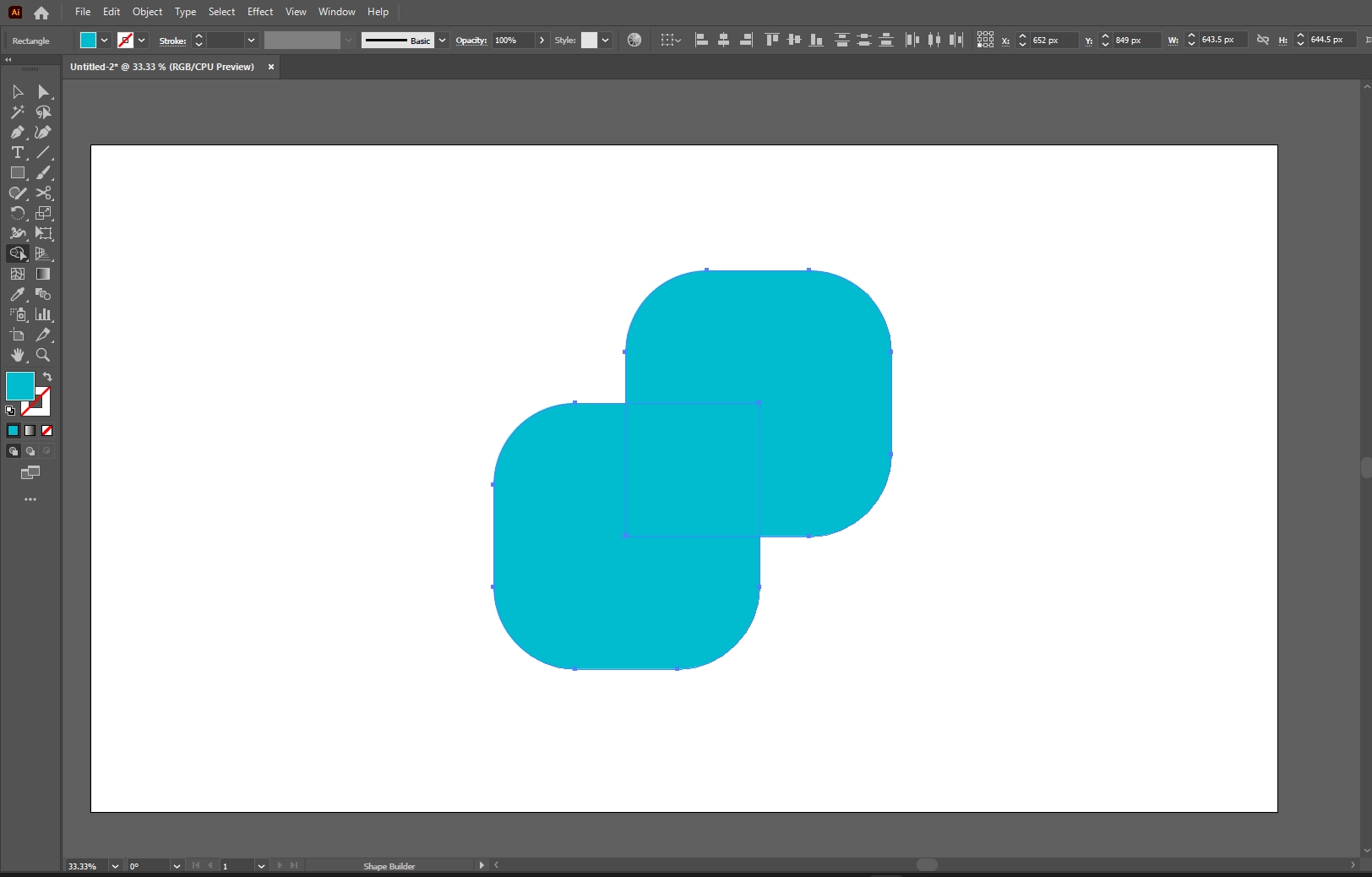 6. Delete intersecting part by pathfinder
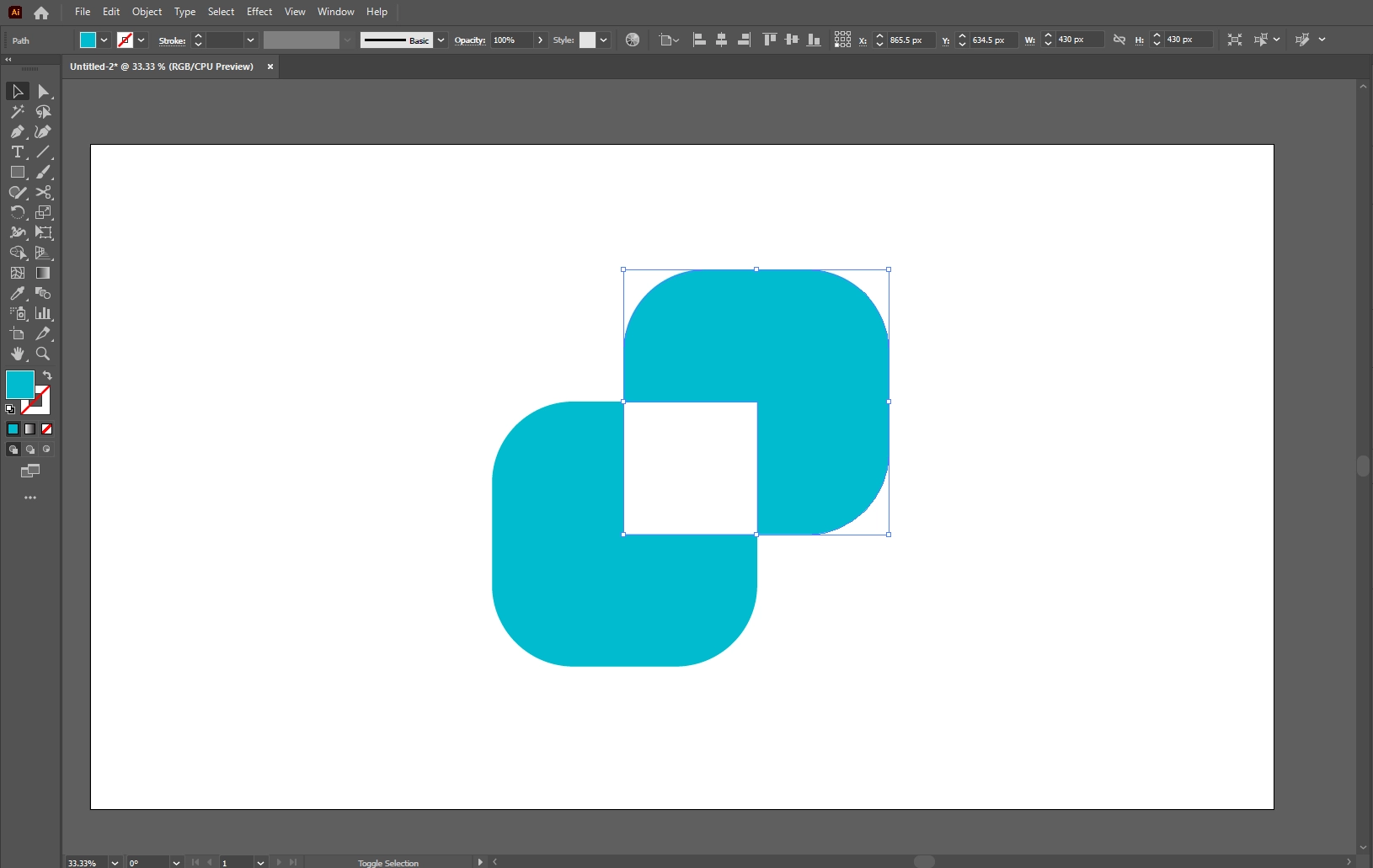 7. Change color of the other part
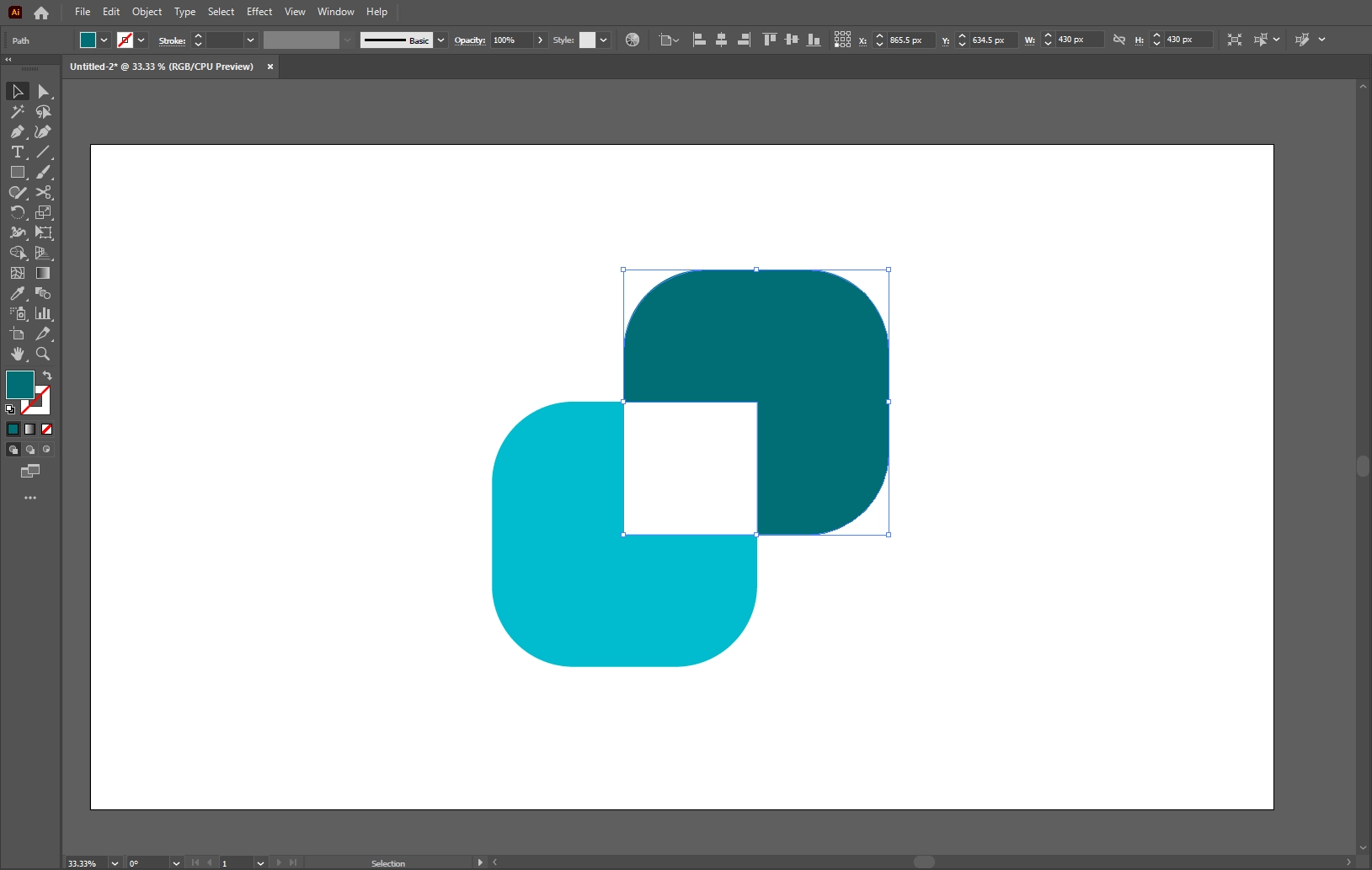 8. Add text
 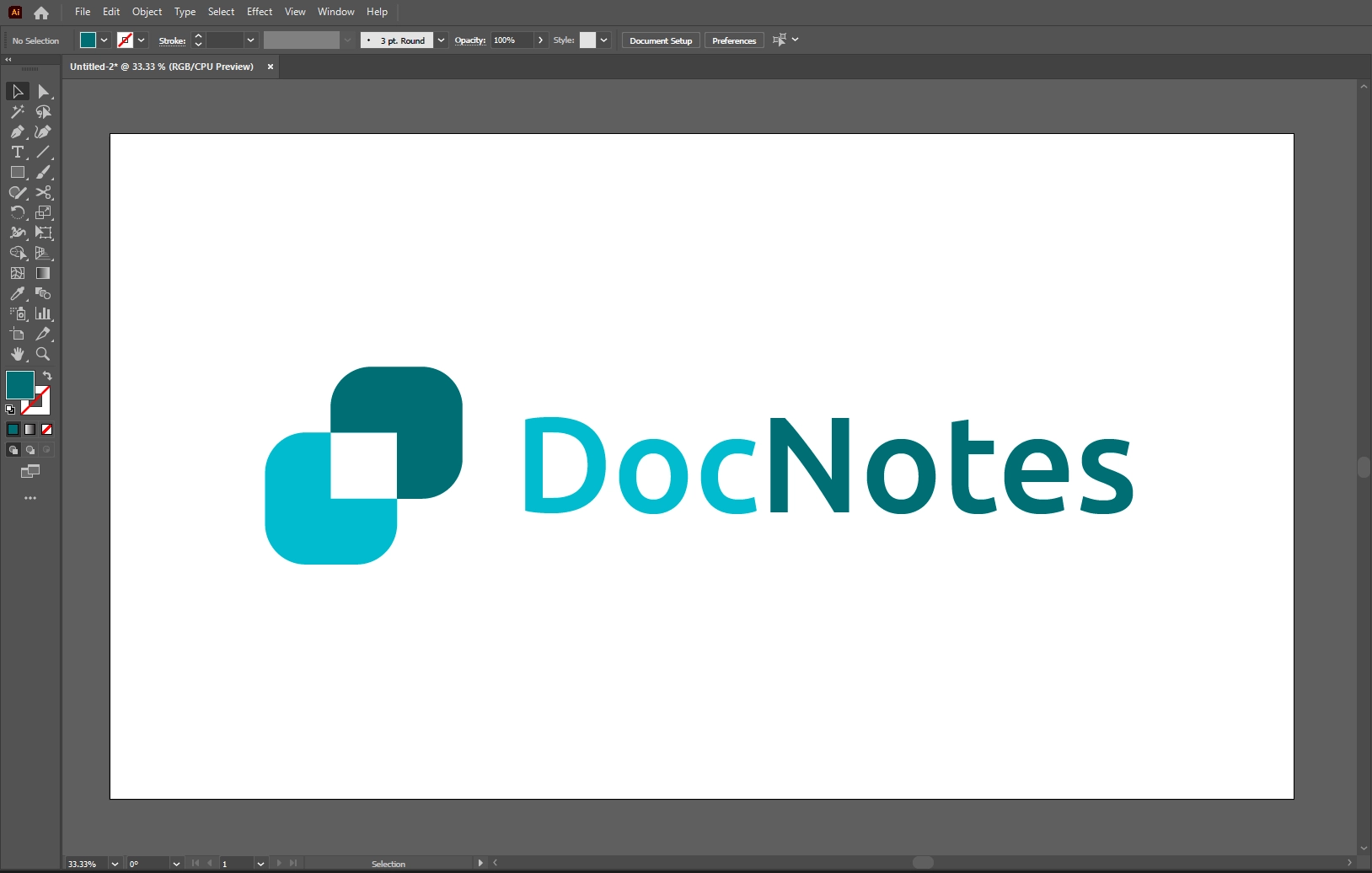 Your Logo is ready! See how easy things get with Bloop. Hope you enjoyed the learning hold on for more insightful things in the design journey.
Stay connected with us for the latest updates and insights on software development trends. Follow us on social media and visit our website for more!”
???? Website: Icon Pro Solutions
???? LinkedIn: Icon Pro Solutions on LinkedIn
???? Facebook: Follow us on Facebook
???? Dribbble: See our work on Dribbble
???? Instagram: Follow us on Instagram